Updated: {globalVars.lastUpdated}
Views: {globalVars.numViews}
]]>Learning Central Essentials is designed as a reference for all the main tools and features available in Learning Central. It contains Quick Start Guides for the Cardiff context and links to further online help.
When rolling over modules or creating new modules, Essentials can be used in conjunction with the Learning Central Good Practice Guide, which consists of four checklists to ensure that your Learning Central modules follow the best possible practice for you and your students.
If you require more support, please contact LTAcademy@cardiff.ac.uk
Good practice checklists that will ensure your modules are well-structured, accessible, and meet student needs, all with minimal effort.
Find out how you can use Blackboard Ally to generate accessibility report at the course/module level.
Not sure whether to use Turnitin or Blackboard Assignment (with Turnitin)? Use our interactive comparison guide to find the best option for your assessment needs.
A step-by-step guide to help staff set up new modules before going 'live'.
A library of microlearning videos that gives staff a quick and easy way to develop their understanding of Blackboard Ultra.
Information for staff seeking to understand the terminology difference between Blackboard Original (used for 22/23 modules and earlier) and the newly introduced Blackboard Ultra Courses (accessible for 23/24 modules and beyond).
Blackboard Ultra is a modern platform that has the power to transform the student online learning experience. Its responsive interface is designed to function on all devices, including mobile.
This guide provides a reference, for both academic and professional services staff, on the main tools available in Ultra in Cardiff, with Quick Start Guides for the Cardiff context and links to comprehensive online help.
If you require more support, please contact DigEdSupport@cardiff.ac.uk
Information for staff seeking to understand the terminology difference between Blackboard Original (used for 22/23 modules and earlier) and the newly introduced Blackboard Ultra Courses (accessible for 23/24 modules and beyond).
Beneath these folders comes a sequence of Learning Modules for your learning materials. Folders and Learning Modules can contain subfolders.
]]>
See Learning Central Essentials for full information on:
]]>
]]>
Although assignment submission points don't have to be created at the start of the module, students have told us that it is important that an assessment overview is available at the start so that they know what to expect and when.
]]>]]>
Video guide to importing content into a module:
]]>
.png')
We recommend that you copy content in manageable chunks and check it as you go along to make any revisions, adjust dates, etc.
]]>.png')
Video guide to importing content into a module:
]]>

For full details see Batch Edit.
]]>
Student feedback highlights the need for a consistent structure across modules, and timely uploading of learning materials.
]]>Do your learning materials have a clear and coherent structure, with a sequence of weekly or topic based Learning Modules? (You can easily convert folders to Learning Modules if necessary.)
If there are multiple staff contributing to a module, is there agreement on the structure and format to avoid confusion for students?
Does your content have clear, searchable titles and descriptions? (For example, Week 2: Pitch and Flow of Sounds, rather than simply Week 2.)
Do you use Learning Central Documents to organise your content? Did you know that these can now include mini formative 'Knowledge Checks'? (Multiple Choice Questions)
Do you use thumbnail images on your Learning Modules? These aid navigation and visually enhance the module.
Are there any unnecessary files or links at the top level of the module, (for example, additional links to discussion forums)? Could these be neatly organised within Learning Modules or the About your Module or Assessment and Feedback folders?
Could there be any multiple versions of the same document inadvertently lurking in different areas of your modules?
If you have previously added or imported learning materials into folders, you can easily convert them to Learning Modules by clicking on the 3-dots menu at the top right:
.png')
See Learning Central Essentials for more information on Learning modules and folders
]]>Video guide to adding MCQ Knowledge Checks to Documents:
See Learning Central Essentials for more information on Creating Documents
]]>Video guide to adding Thumbnail images:
See Learning Central Essentials for more information on Learning Modules
]]>Consider grouping content in units of more than one week of work. For example 'Week 1 & 2: xxxx and yyy', or even 'Week 1-4: xxxx topic'.
If you require more support, please contact LTAcademy@cardiff.ac.uk
]]>Learning Central has built in features that make it easy to improve accessibility:
.png')
.png')
Ally automatically displays an accessibility score for files and Documents in Learning Central. You can click on this for suggestions of improvements you can make:
.png')
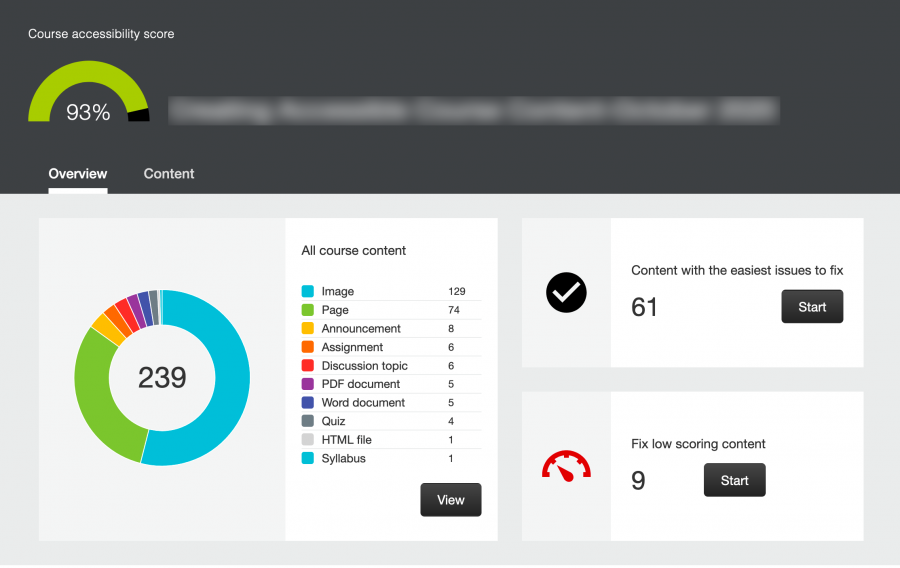
The Ally Course Accessibility Report gives an accessibility report for a whole module. This lists the accessibility issues in order of priority, from severe to minor, to help you decide which to fix first.
For more information see:
However, to avoid frustration for staff and students, it's important to understand a few basic principles about how Panopto is integrated with Learning Central, and what to do when you have a new module.
]]>.png')
NB: Staff and students can also access Panopto via Books & Tools > Content Market.
]]>]]>
]]>
The tasks in this section can always be completed at a later date, as long as an Assessment Overview is available in the Assessment and Feedback folder.
]]>.png')
For detailed procedures for various portal set-up scenarios, please refer to:
]]>.png')
See Learning Central Essentials for more information on:
Video guide to importing content into a module:
]]>
]]>
.png')
For detailed procedures for various portal set-up scenarios, please refer to:
]]>
The Overview tab highlights the items that need marking and those that need posting.
.png')
Did you know that you can click on the Students tab (Participants tab in an organisation), to view Analytics such as Progress Tracking and Activity Log information for each student, or sort on Last Access for an overview of engagement?
See Managing Marks and Feedback for more information.
]]>
See Setting up your Gradebook for more information.
Marks will only be released to students when they are Posted, either manually or automatically. (Except in the case of Turnitin assignments, where the release of marks is controlled through the Feedback Release Date.)
For full details see Column and Grade Visibility
]]>Messages can be sent to individual students or smaller groups, also with a concurrent email. (This is also 'one-way' communication, as students cannot reply to Messages in Learning Central.)
Discussions can be used for two way conversations, for both academic and admin purposes.
]]>All the previous Announcements and Messages are stored in the module, so provide a useful reference for students and staff.
]]>.png')
.png')
See Learning Central Essentials for more information on Announcements.
]]>.png')
NB When you create a new Discussion, it will appear both in the Discussions tab and as a link in the Content area. Be sure to drag these links into the relevant areas of the module, or remove them from the Content page altogether in Discussion Settings (see below).
]]>.png')
.png')
See Creating Discussions for more information.
]]>.png')
More information in Discussion Notifications.
]]>
Under Settings, you can optionally:
See Anonymous Discussions for further information
]]>.png')
Ensure the module has at least one 'Primary Instructor':
Your personal profile is used across all modules so you will only need to update it once. You can add a profile picture, update your contact details and link to your profile on the university website. To check your personal profile, go to https://learningcentral.cf.ac.uk/ultra/profile or click your name in the left-hand menu of the homepage.
See Learning Central Essentials for more information on:
]]>
You can also decide to keep some email notifications but to set up an Outlook rule to filter them to a specific folder.
See Notification Settings for more information.
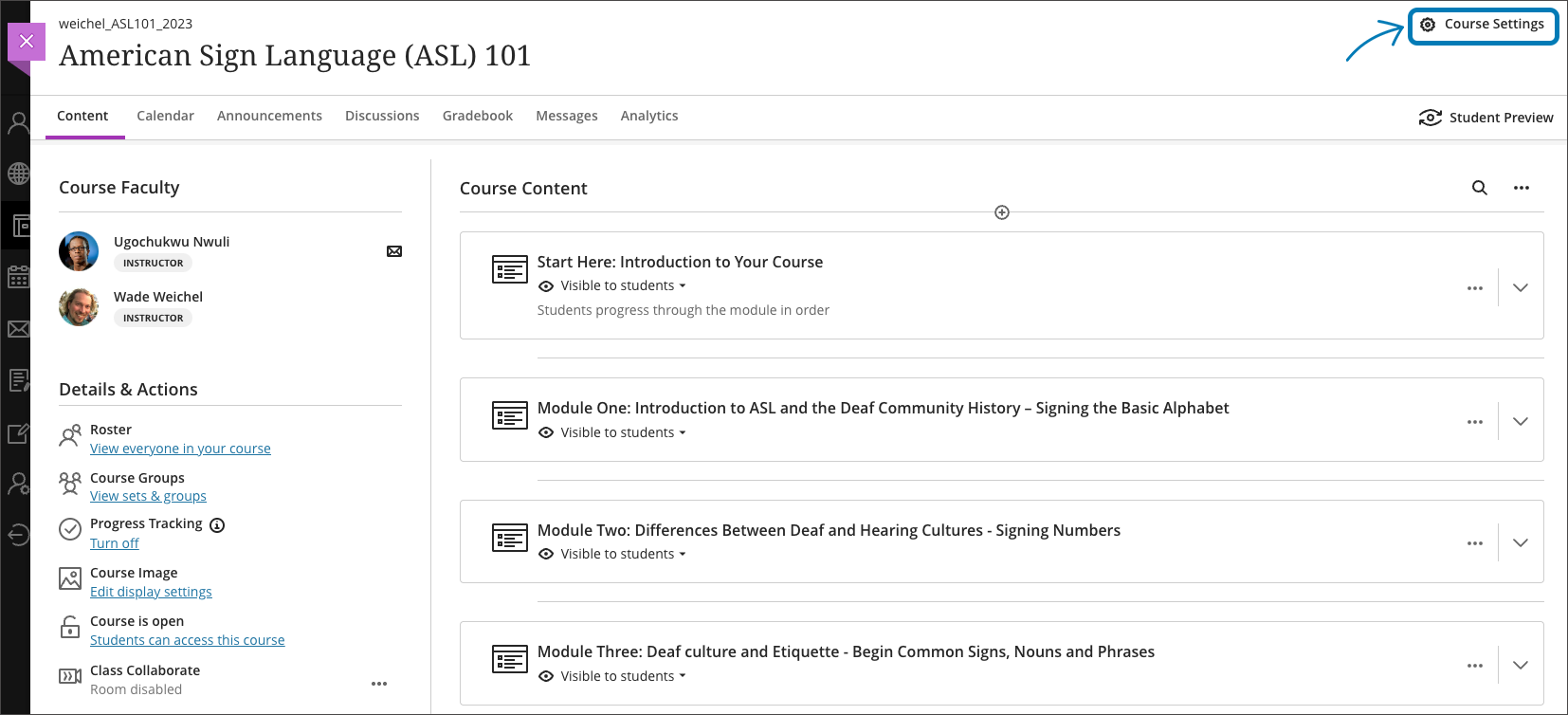
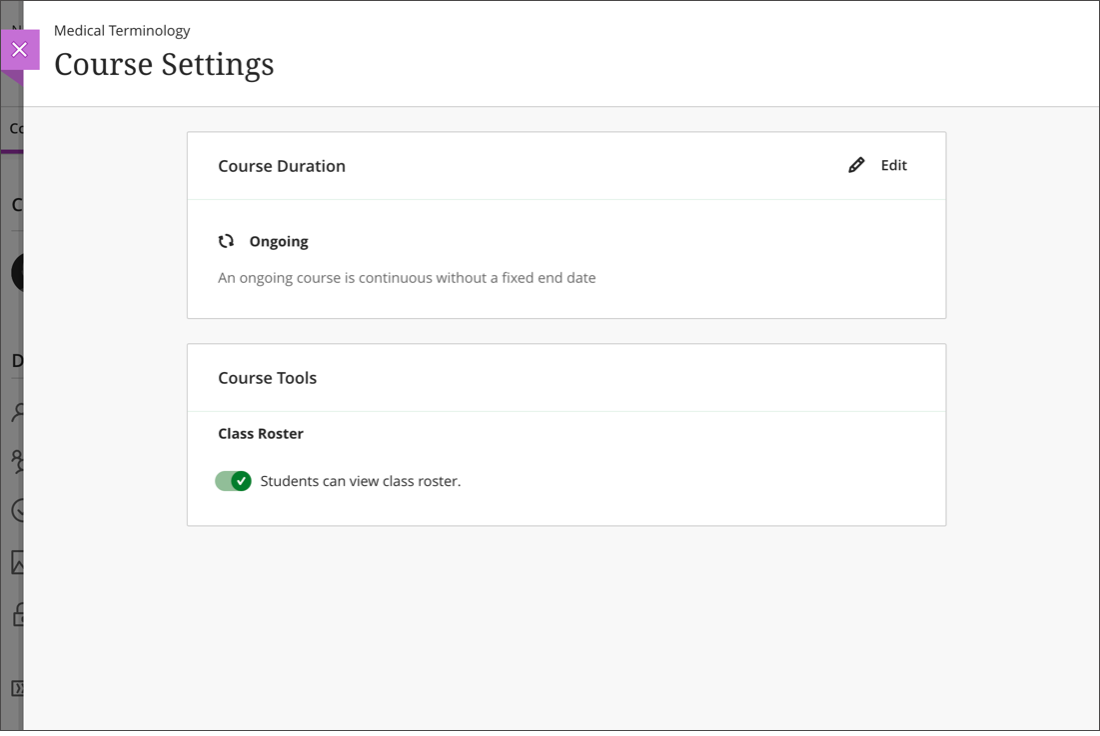
]]>Click on Course Settings at the top right of your module to edit the dates of your course.
Learning Modules are a special type of folder designed for collections of learning materials and activities. Students navigate sequentially through a linear structure, almost like an e-book, enhancing the 'flow' of reading and learning.
We recommend organising Ultra course materials within learning modules by week, topic, session, etc, as appropriate.
Learning modules can contain folders if it helps to organise large amounts of content.
Folders are simply used to gather together multiple files in a single 'container'. We recommend placing module-wide reference materials and useful resources in a top level folder.
Please Note: It is vital that you map out in advance how your content will be structured and organised, ideally in consultation with other colleagues/module leads on your programme. This will ensure a consistent approach and greatly enhance usability for both students and staff.
]]>You can create one more level of folders inside a Learning Module. These will also have sequential navigation.
To create a learning module:

Select 'Create' and then select 'Learning module'.
Click on the default name ('New Learning Module..') to rename it to something that accurately explains what the folder is for.
Add to the description field with clear, concise information describing what the content item is about, who it is for and what it contains.
You can optionally add a thumbnail image to add visual identity to your learning module.
If you want students to access this content immediately (or as soon as they have access to the module) change the drop-down option from 'Hidden from students' to 'Visible to students'.
Tick the 'Forced Sequence' option if you want to ensure students work through the learning module in the required order.
Select 'Save' - your new folder will now appear.
Helpful hint: when creating new learning modules items, always rename them and complete the description fields. This helps students understand what content is without having to access it.
]]>For a quick guide on how this tool operates, check out the short video below.
Folders work well for resources that students are more likely to access as a point of reference, as and when required (e.g. module information, assessment information).
You can create two levels of folders to organize your content. To create a folder:

Select 'Create' and then select 'Folder'.
Click on the default name ('New Folder...') to rename it to something that accurately explains what the folder is for.
Add to the description field with clear, concise information describing what the content item is about, who it is for and what it contains.
If you want students to access this content immediately (or as soon as they have access to the module) change the drop-down option from 'Hidden from students' to 'Visible to students'.
Select 'Save' - your new folder will now appear.
Helpful hint: when creating new folders, always rename them and complete the description fields. This helps students understand what content is without having to access it.
]]>If you have previously added or imported learning materials into folders, you can easily convert them to Learning Modules by clicking on the 3-dots menu at the top right:
.png')
It is also possible to change learning modules to folders. (Instructors are warned that all learning module functions are removed when converting a learning module to a folder.)
]]>It is recommended that you use the top two folders for module-wide information such as a module handbook and reading list, together with all the module assessment information and summative submission points. This will give students consistency across modules so they can always easily find this information.
Following on from these, the learning modules will contain the main learning materials, and enable students to work through a flow of content. These can be broken down either on a week-by-week basis, or another structure that makes logical sense in the context of your module.
Below is an example of a structure that will help students navigate with ease and guide them through their learning content.

We need to ensure that our teaching and learning activities, our online learning environment, and our resources, are accessible to our diverse community of learners and to design out any barriers that may prevent learners from achieving their full potential.
Find out more about digital accessibility
You will find advice about accessibility throughout this guidance, but a few overall pointers are highlighted below:
]]>Click on the Ally icon by content items to download alternative formats:
Watch a video by Blackboard on an overview of Ally:
Ultra has and integrated accessibility helper, Ally
Ally measures the accessibility of each file attached to your course and shows you at-a-glance how it scores. Scores range from Low to Perfect. The higher the score the fewer the issues.
![]()
![]()
![]()
![]()
For files with Low to High scores, Ally shows you the issues and gives a step-by-step guide on how to fix them.
]]>
Ally’s course accessibility report includes Overview and Content tabs so that you can get the big picture as well as specific details about the accessibility of your digital course content.
The Overview tab shows the accessibility score for the course, course content grouped by content type, and a list of all accessibility issues identified in the course
The Content tab shows you the content with any accessibility issues found.
Watch a video to see how to launch the Ally accessibility report:
]]>Ally allows you to fix some issues within Learning Central such as adding missing alt text and contrast or formatting issues found in Ultra documents. Ally can also identify issues with documents that have been uploaded to Learning Central (Word Docs, PDFs, PowerPoint slides) and these will need to be fixed in the original files and re-uploaded. Ally allows you to do this within the report so you do not have to locate individual files in the course to replace.
It is advised that you prioritise Severe and Major issues to improve the overall accessibility of the course. Minor issues should be considered when appropriate to improve the accessibility score.
Watch a video to see how to fix accessibility issues with Ally:
The Blackboard Help Center provides detailed information about the Course Accessibility Report.
]]>
Ensure there is sufficient contrast between text and background, but avoid very high contrast (for example, use a dark grey on an off-white background). Use a simple sans serif font (the default font is often best). Avoid italics, block capitals or underlining; use bold for emphasis only. Left-justify your text. While it is tempting to focus only on aesthetics, these formatting choices can benefit a range of learners, including both visually impaired and neurodiverse students.
]]>Use images selectively, and describe the appearance and function of each image. Many applications have specific 'alt text' functionality, otherwise you can add it alongside the image. This can particularly help those with visual impairments as the 'alt text' can be read by screen reader software, which cannot access the image contents otherwise (this is why text within images is inaccessible).
Adding Alt text in Blackboard - when you add an image into the content editor in Ultra, you will be presented with file options - this includes a space to enter alternative text. If your image is purely decorative you should tick the relevant check box - this will tell screenreaders to ignore this image.
When you create a hyperlink (a web link to another resource or website) use as the linking text words or a phrase that describe what you are linking to, rather than a generic phrase like 'click here' or the URL itself. For example: rather than 'for information on making link text meaningful click here' use 'read more about making link text meaningful'. This helps learners navigating using a keyboard, including visually impaired learners using a screen reader.
]]>Please Note: New content is hidden from students by default. You will need to change its visibility via its dropdown list for students to access it.
]]>

.png')
Documents can be put together from a variety of Blocks. These can be dragged and dropped and resized to create an attractive grid layout.
Blocks can be built from scratch with the Editor, or you can automatically convert a file, such as Word, PDF or PowerPoint, into an editable block. This is a good option for accessibility, however content should be checked after uploading for any anomalies.
]]>
The Document will open in Editing mode. Enter a title for your document page:
.png')
.png')
.png')
.png')
.png')
.png')
You can select styling options from the dropdown menu that appears in Edit mode on all block types:
.png')
]]>

The Document will open in Editing mode. Enter a title for your document page:
.png')
.png')
.png')
.png')
.png')
]]>
.png')
.png')
.png')
.png')
.png')
.png')
.png')
.png')
.png')
In this way, you can create attractive grid layouts, which are responsive on mobile devices.
If you make a mistake, you can use the Back button to undo:
.png')


]]>


.png')
.png')
]]>
This section describes the Panopto integration with Learning Central. (For full details on Panopto see the Cardiff University Panopto resource: the Panopto Recorder for Personal Capture, basic and advanced editing, captions, quizzes, roles, permissions and sharing, statistics and results.)
]]>Each module has its own Panopto folder, which is where lecture capture videos will appear automatically. You can also use this folder for other module videos. There should be a link to the Panopto folder in your module template - make sure that this is available to students unless there is a good reason to hide it.
]]>Caution:
LC modules are connected to Panopto ('provisioned') by a one off process in the summer. Any staff or students added to a module at a later date need to initiate the connection themselves by accessing Panopto through 'Books and Tools' or the 'Content Market' in the module. For example:
You can avoid these issues by adding videos by the recommended methods below.
]]>.png')
.png')
Alternatively, for example to access a recording in your personal Panopto folder, you can use the dropdown menu to navigate to the location of your video, before clicking 'Insert':
Please Note: Large media files should NOT be uploaded directly to Learning Central. This quickly uses up module file quotas and provides a less efficient viewing experience for users.
]]>.png')
.png')
.png')
.png')
Please Note: When you copy videos in bulk, the new copies will become video reference copies. These are identical to the originals, minus any viewer-contributed metadata such as quiz results, comments, or notes. If you want to edit a reference copy, by default this will change both the new copy and the original. Alternatively you will have the option at the editing stage to create an independent copy. You can find more details in Learn About Video Reference Copies.
]]>


Note: When you first copy a recording, it will inherit permissions from the new folder. The default in Panopto is that you need to make recordings available to students before they can be viewed, so this may need to be adjusted in the new module.
]]>For videos in Welsh, the language can be set at the level of either the video or the folder.
See Panopto Help on the Intranet for full information.
]]>


Note: If you would like to provide individual articles for your students, please always add a link to the article in the library (see below), rather than uploading a PDF to Ultra. This will allow the library to keep accurate records of access data.
]]>
You can also link directly to component parts of your reading list, such as a section (e.g. week / topic) or an individual item (e.g. journal article / book chapter).
The following video shows how to add reading list links to a folder or learning module in Ultra Courses - it covers adding a link to the whole reading list and adding a link to a section (week or topic). This second method can also be used to create a link to an individual item (e.g. journal article / book chapter).
Please Note: The time and date in Ultra are taken from the timezone setting of your device. (NB This is not always the same as the time shown on the clock, or the network time in the browser, so care should be taken if travelling). Release dates and due dates will automatically be converted to the timezone of users' devices. For more details see Working with Timezones, below.
]]>
.png')
.png')
Click Save to save Rule 1. The content will display when all the criteria of Rule 1 are fulfilled.
Please Note: If you specify several criteria under Rule 1, each of these must be true in order to trigger the rule and display the content. This is where you can specify 'AND' rules.
You may then go on to add additional rules for the content item. This is where you can specify 'OR' rules.
To add additional rules for the content item:
.png')
Add the criteria for rule 2:
.png')
You can see that a second release condition has been added for this content item. The content will now display if either rule 1 OR rule 2 is triggered:
.png')
When will content appear? determines whether the content will be completely hidden if students don't fulfil the condition to view it, or whether it will appear to students as a non-clickable placeholder on the Content page:
.png')
For students, times and due dates will automatically be converted to their local time, as defined by the timezone property of the device they are using. If you have students studying in different timezones, it may be worth making them aware that any submission deadlines mentioned in UK time will automatically convert to their local time in Ultra.
The utmost care should be taken if you ever need to set up assignments or adjust release times while you are out of the country. In this case, first ensure that the timezone property of your device is set to UK time. The illustration below shows a Test which was set up while on Central European Time, and automatically converted to GMT for users in Britain.
It is possible to check the timezone of the deadline in the test settings, but it doesn't display in the description on the Content page. It is only displayed to students after opening the test.
.png')
Please note: When exiting Student Preview, if you choose to Discard the information, your student preview account will be removed without trace. However if you choose to Save, all activity will remain visible in the course until you enter Student Preview again and Discard it.
]]>

Note: You won't be able to use Student Preview or make changes in a completed course.

![]()
.png')
If you choose to Discard the information, your student preview will be removed without trace. However if you choose to Save, all activity will remain visible in the course. You will be able to see any submissions made by the user and, for example, use them to practise marking, before returning to the same student preview to view the feedback that you left.
Students enrolled on the course will also be able to see any preview user data until it is discarded, and respond to any comments you may have made (i.e. on discussion boards) while in preview mode.
]]>


]]>
You can add the content and tools on the Course Content page alongside your other course materials or insert them directly to the editor in your course's assignments, tests, and documents.
.png')
Expand the links below to see the step by step guide in action.
]]>To do so,


In the editor, select Insert content > Content Market
.png')
Consider the needs of your course and the desired user experience when choosing between these options.
Notes on the Differences
LTI Tool link: The Xerte object slides in at full screen within Ultra, allowing students to access the Xerte content at a larger scale without leaving the course content area.
Web Link: The Xerte opens at full screen in a new browser tab or window. This option is suitable for linking to external resources or when a more integrated experience is not essential.
Embed Option: One or more Xerte objects can be displayed in the context of an Ultra Document. This provides the closest integration with your Ultra content, however the Xerte object will be displayed within the Ultra Document rather than at full screen.
Please note: It's important to ensure that the Xerte object's access level is set to "Public" to prevent any issues with student access.
]]><iframe src="THE-URL-OF-YOUR-XERTE" width="100%" height="665" frameborder="0" style="position:relative; top:0px; left:0px; z-index:0;"></iframe>
If you have copied embed code generated by Xerte, you are recommended to change the parameter width="800" to width="100%" to ensure that the Xerte object will be responsive to screen size, particularly on mobile devices.
]]>Please be cautious when using the Unused Files tool in Learning Central. This tool may flag important files in course packages created with tools like iSpring, Articulate, or Adobe Captivate as “unused.” Deleting these files could disrupt the packages. If your module includes such packages, you can still use the tool but should take extra caution. Only delete clearly identifiable files and avoid deleting any that may be part of a package.
Pro Tips: Always make backups before using this tool for bulk file cleaning.
.png')
.png')
.png')
This feature serves several important purposes:
Please note: While Export Course Packages is helpful for backing up and archiving course content, it is not recommended as a primary tool for copying content between courses. For copying content, use the dedicated Course Copy function to ensure all settings, links, and course elements transfer correctly.
]]>When exporting, you'll have two main options:

Once the export is complete, you'll be able to download a ZIP file containing your course package. This file can then be imported into another Learning Central course or stored for future use. It's important to note that exported packages are automatically deleted from the system after 30 days, so be sure to download your export in good time.
]]>
.png')
]]>
For a quick guide on how this tool operates, check out the short video below.
Announcements are hard to ignore! New announcements appear as a pop-up when a course is opened and have to be actively dismissed to continue. They also appear on the Activity Stream landing page, and, if you choose, by email.
Students can review past Announcements via the Announcements section of the top menu.
.png')
.png')
.png')
.png')
.png')
Announcements will be displayed for students when they open the course, and must be actively dismissed before moving on.
They also appear on the Activity Stream landing page, and by email if the option is selected.
]]>All Discussions can also be accessed from the Discussions tab at the top of a course, where you can easily check for new messages. New message notifications also appear in the Activity Stream and email notifications.
Discussions can be used with student groups and can also be graded.
Please Note: By default, each Discussion can be accessed from BOTH the Discussions tab and the Content area. So if you create a new Discussion in the Discussions area, it will ALSO appear at the bottom of the Content page. You can then drag it into position in an appropriate folder or Learning Module.
.png')
.png')
.png')
.png')
.png')
.png')
.png')
NB In the general settings for Discussions, there is a check box where you can 'Allow students to create discussion topics'. You will probably NOT want to check this, as it would allow students to create new forums - something that is reserved for very specific use cases.
.png')
.png')
.png')
.png')
Within Ultra, new messages are indicated with a blue icon in the Discussions tab and the Content area.
Please Note: This is ONLY the case for discussions that are also available on the Content page. This in itself is a good reason for incorporating Discussions within the flow of the Content page as well as in the Discussions tab.
.png')
.png')
.png')
.png')
As Conversations are added at the level of the content, students can easily discuss content with staff and peers, ask for help, share resources or answer questions from peers.
Please note: Conversations do not appear in the main Discussions area of the course, and there are currently no overall notifications of new activity. Therefore it is necessary to check each Conversation individually if you may need to respond.
]]>.png')
.png')
.png')
.png')
Messages can be sent from the Messages tab on the main menu, and also from other areas of a course such as Grades or Discussions. They enable you to target individual students or groups of students (whereas Announcements will target all enrolled on the course). Messages replace the ‘Send email’ function of the previous platform.
Please note: Students can view messages, but are not able to reply. (This is a system-controlled function and currently not activated.)
.png')
.png')
.png')
You can create groups of students within your courses to interact with each other online in group Discussions, Conversations etc.
Student Groups can also be used to assign content, learning tasks, tests, assignment, messages etc with greater granularity.
Groups can be created manually or generated randomly. They can be created in three different places within a course, which behave slightly differently. (In most cases, it is probably simplest to create Course Groups in the main Groups tab and use them across the module.)
Course Groups: Course groups can be used across the module for Discussions, Assignments, Release Conditions and can be used to filter the Gradebook.
Discussion Groups: You can limit students to viewing and interacting in the discussion only within their group. For this, you can either reuse Course Groups created on the Groups tab or create new groups here. Groups created within Discussions can be reused for Assignments and are visible on the main Groups tab but cannot be used in the main Gradebook filter.
Assignment Groups: Assignment Groups allow students to make a single Assignment submission on behalf of their group, which assigns the same grade to each member of the group. (You can override this individually if necessary and add individual comments.) You can either reuse Course Groups created on the Groups tab or create new groups here. Groups created within Assignments can be reused for Discussions and are visible on the main Groups tab but cannot be used in the main Gradebook filter.


Please Note: When creating Self-enrolment Groups, make sure the Groups is visible to student by changing the visibility setting from Hidden from students to Visible to students.
.png')
.png')


Columns marked with a * need to be populated. (Other columns do not need to be completed).

You will receive an email confirmation when the upload is complete.


Columns marked with a * need to be populated. The other columns can be left blanked.
Note: If you need to find out the Group Code:


Watch this video on Creating Group Assginments:
They can be used as a reflective tool for the student to post their opinions, thoughts, ideas, discuss and analyse course materials, and are ideal for the student to reflect on their experiences when on work placements.
]]>
1. Titling the journal
Give the journal an engaging and specific title so that the student knows what to expect. You can edit the title by selecting the pencil that will appear at the end of the title, when you hover your cursor over it.
2. Show or hide the journal
The journal will be hidden by default. This will allow you to prepare the journals in advance and release them to the student when ready from the dropdown menu and selecting the 'Visible to students' option.
3. Add a prompt to set expectations and guidelines
Use the options at the top of the test box to format the text.
4. Attaching files and adding multimedia
Select the + sign to reveal the dropdown menu. From here, you can attach files, embed multimedia or choose something from the 'Content Market'.
The following question types are supported in an Ultra Form:


Please note: Student-submitted data can be downloaded in spreadsheet format.
]]>Please be aware that you do not have to complete all profile fields. Only fill in the information that you would like your students to know.
]]>

Helpful hint: If you are an Academic, you may also want to add a link to your University website profile in the 'website' field to emphasise your professional standing, any publications you have been involved in and/or research and subject specialisms.
Important!
Update your Privacy Settings to allow anyone on your courses to view your profile information. Otherwise students will not be able to see it!
.png')
]]>
It is important to consider the most appropriate role for users enrolled on your modules. Ideally, staff should have the lowest level of access compatible with their duties on the module. (See below for role descriptions.)
In addition, all course staff and students are shown in the Class Register, accessed below the course staff list. Here you can set the Primary Instructor and drill down into profile information for staff and analytics information for students.
NB There can be caveats, for example, Staff Read Only accounts may not always work correctly with integrated tools, such as Panopto. If in doubt, please contact LTAcademy@cardiff.ac.uk.
]]>.png')
Note: You won't see an envelope icon by your name as you can't send a message to yourself! Students cannot use the Message feature at this time.)
Click on Class Register to view all staff and students on the module:
.png')
See below for a full description of roles available
In addition, all course staff and students are shown in the Class Register, accessed below the course staff list. Here you can set the Primary Instructor and drill down into profile information for staff and analytics information for students.
NB There can be caveats, for example, Staff Read Only accounts may not always work correctly with integrated tools, such as Panopto. If in doubt, please contact LTAcademy@cardiff.ac.uk.
]]>.png')
Note: You won't see an envelope icon by your name as you can't send a message to yourself! Students cannot use the Message feature at this time.)
Click on Class Register to view all staff and students on the module:
.png')
NB There can be caveats, for example, Staff Read Only accounts may not always work correctly with integrated tools, such as Panopto. If in doubt, please contact LTAcademy@cardiff.ac.uk.
]]>To view or change your notification settings you can either:
.png')
.png')
.png')
.png')
.png')
You can adjust your notifications by opening the settings using the icon in the top right corner. From here you can adjust which notifications you see in your activity stream.
]]>As well as choosing which categories of notification you want to receive by email you also have the option to reduce notifications into a daily digest or receive them as soon as they are released.
In the notifications panel select the envelope icon to adjust which notifications you will receive by email.
]]>In the notifications panel select the bell icon to adjust which notifications you will receive via the app.
]]>You can add a Test at any point in a sequence of learning materials in a Learning Module or Folder. It is good practice to first create your Questions in a Question Bank.
The range of question types available in Ultra is slightly more restricted than in Original Courses:
All of these question types are graded automatically, except for Essay Questions which need to be manually marked.
]]>Question Banks contain master copies of questions which will persist even if the Test using them is deleted. They allow you to organise questions by topic, LO, etc. and to build up a library of questions over time without fear of inadvertently deleting a test, or students having access to them unintentionally.
Then there are two ways of adding questions from a Question Bank to a Test:
If you have created tests without Question Banks, or imported tests from other courses, you can later consolidate the questions into Question Banks if you wish.
]]>.png')
.png')
.png')


It is recommended that all summative tests should be placed in the Assessment and Feedback folder, however formative tests may be added at any point.
]]>
Questions in a Pool remain directly linked to the Question Bank - i.e. If you edit a question from a Pool, the edit will propagate through to everywhere the question appears.
]]>|
Original Course View (old) |
Ultra Course View (new) | |
|---|---|---|
| Random block and question set | Question pool | |
| Question pool | Question bank |
Question Banks store questions for use within a module, and should usually be created before Tests. You can also import existing banks (formerly pools) from Original modules (see Migrating from Original - Importing a Pool from Original).
Question Pools allow you to serve different questions to students sitting the same test.
]]>Please Note: The time and date in Ultra are taken from the timezone setting of your device. (NB This is not always the same as the time shown on the clock, or the network time in the browser, so care should be taken if travelling). Release dates and due dates will automatically be converted to the timezone of users' devices. For more details see Working with Timezones.
]]>.png')

.png')
You can also set exceptions to adjust the window when specific assignments are available or give additional attempts to specific students.
]]>.png')
.png')
.png')
.png')
]]>
Student accommodations allow you to grant more time for students to finish their work during timed assessments.
NB This section is only relevant if you wish to reuse existing tests from Blackboard Original, not if you are creating tests for the first time in Ultra.
]]>Remember: What were called "Pools" in Original are called "Banks" in Ultra.
]]>.png')


To use the export/import method, export a test from your Original module to your computer then do the following:
It my take a few moments for the test to import. You will receive an email notification when the test successfully uploads.
All supported questions from this test will now be available for you use when you create a new test. For guidance on this, please see Adding a Question Pool to a Test and Reusing Questions (From Banks or Other Tests).
]]>.png')

.png')
The test will appear in the Course Content area and will be hidden from students.
If you would like to move the questions into a Question Bank, follow the instructions below.
.png')
.png')
.png')
.png')
For detailed procedures for various portal set-up scenarios, please refer to:
]]>Turnitin (which has long been available in Learning Central as an integration) can also be used for straightforward written assignment submissions. However, if you wish, you can now also use Turnitin similarity checking within Learning Central Assignments. There are a number of reasons you may choose to use a Learning Central Assignment rather than a Turnitin Assignment:
Please note: Currently, with Blackboard Ultra Assignments, you are not able to submit work on behalf of students. This feature is available in Turnitin but is not yet supported in Blackboard Ultra.
]]>
.png')
Assignments support many file types, however to use Bb Annotate inline grading submissions will need to be in a supported file format (includes PDF and MS Word and PowerPoint). If you intend to use annotated marking you may wish to clarify in the assignment information the file type required.
The Assignment Settings panel on the right provides shortcuts to the due date and some other frequently used fields in the main Settings panel. Or click on the cog icon to open the full Settings panel. (See the Settings section for more detail on this.)
The Assignment Description field can be found at the bottom of the Settings panel.
When you are happy with your settings, press ‘Save’ at the bottom of the panel to complete the assignment creation.
Now select the drop-down box in the top right corner and choose when you want to make the assignment visible to students. Students will be notified in their activity stream if they have assessment notifications turned on.
Note: When you create an assignment, a Gradebook item is created automatically. After receiving a grade, students can this on their grades pages or in the activity stream. They can also access an assignment, their submissions, feedback, rubrics, and their grades from the assignment link on the Course Content page.
]]>By accessing an assignment's settings you can:
If any of this information is changed, learners who have already submitted will see the new instructions only on subsequent attempts (if applicable).
If no learner submissions exist, assignments may be deleted from a course area. The Gradebook column is also deleted.
If an assignment with learner submissions is deleted from a course, the gradebook column and the submissions are also permanently deleted. To prevent submissions from being deleted, hide the assignment from students rather than deleting it. Students cannot access grades for hidden assignments.
]]>Please Note: The time and date in Ultra are taken from the timezone setting of your device. (NB This is not always the same as the time shown on the clock, or the network time in the browser, so care should be taken if travelling). Release dates and due dates will automatically be converted to the timezone of users' devices. For more details see Working with Timezones.
]]>.png')
Please Note: Only files which are submitted to Turnitin will generate a similarity report. These are: Microsoft Word, WordPerfect, PostScript, PDF, HTML, RTF and plain text. The interface will not prevent students from uploading unsupported files, so you may wish to include this in assignment instructions.
Please Note: Some settings are not currently supported: originality reports are not generated for Group submissions, Peer Review or Parallel Grading (where two graders mark the same paper at the same time).
.png')
.png')
Select Enable Turnitin to launch the LTI integration with Turnitin for this assignment:
.png')
The Turnitin settings will load. These are slightly different to those in the original Turnitin interface. Review these carefully to ensure that they are correct:
Ensure that 'Standard paper repository' is selected, so that submissions will be added to the database for future cohorts.
The 'Compare submissions against' options may not be automatically selected. It is recommended to select all of these.
'Allow students to view report after submitting' may not be automatically selected. It is recommended to switch this on.
Report generation options are not available – all reports are generated on submission and are then re-processed on the due date.
.png)
Review the remaining Assignment settings (due date, marking rubric, attempts etc) as normal. See the Assignment Settings section for more detail on this.
The Assignment Description field can be found at the bottom of the Assignment Settings panel.
When you are happy with your settings, press ‘Save’ at the bottom of the panel to complete the assignment creation.
Select the drop-down box in the top right corner and choose when you want to make the assignment visible to students. Students will be notified in their activity stream if they have assessment notifications turned on.

]]>
If you are thinking of using a video assessment, we strongly recommend talking to the Digital Education Team (LTAcademy@cardiff.ac.uk) before proceeding.
See Video Assessment Guidance for Staff for further details.
.png')
Note: After you have graded an assignment, students will not see the feedback until you post the results. This can be done with the 'Post grades' button in the Gradebook:
.png')
There are five types of rubrics in Learning Central:
.png')
Once you've created the rubric, you can assign the rubric to a marked item by selecting Use marking rubric in the assessment settings:
.png')
Rubrics are saved at a course level and can be associated with assignments, journals and discussions. You can copy rubrics between Learning Central courses.
Please note that Learning Central rubrics cannot be used in Turnitin.
]]>
Warning: With parallel marking enabled, the first and second markers cannot see each other's grades and completed rubrics. Reconcilers can view the markers’ grades and feedback but not their rubrics or annotations in student assignments. Also, students only see the rubric and annotations left by the reconciler.
]]>


For detailed procedures for various portal set-up scenarios, please refer to:
]]>Turnitin is available within each module in Learning Central and is recommended for individual (rather than group) written assignments.
See the Turnitin Feedback Studio resource for full details of using the Turnitin platform.
]]>


Only by creating assignments from scratch can you be sure that the settings are correct and that no integration errors have crept in.
]]>.png')
.png')
.png')
.png')
.png')
.png')
.png')
Please Note: The time and date in Ultra are taken from the timezone setting of your device. (NB This is not always the same as the time shown on the clock, or the network time in the browser, so care should be taken if travelling). Release dates and due dates will automatically be converted to the timezone of users' devices. For more details see Working with Timezones.


To amend the Feedback Release Date, click on the link to your assignment to open the Turnitin interface. (Here you can change the settings that are not greyed out. The others are modified through Ultra - see above.)
Grades will become available to students on the Feedback Release Date, provided that the Gradebook column is visible.
.png')
To do this, select all papers in the Turnitin inbox, click on 'Download selected', select 'Grademark PDFs':
.png')
See Turnitin Feedback studio for full information on marking in the Turnitin interface.
Caution: It is extremely important that marks are only added through the Turnitin Assignment inbox, and not typed directly into the Gradebook. Typing a student's mark directly into the Gradebook will not permeate through to the Turnitin interface. It will also permanently sever the link from Turnitin to the Gradebook for that particular student and that particular assignment.
Instead, Turnitin grades and feedback are automatically released on the Feedback Release Date specified in the Turnitin interface. (See above for Quick start guide: Amending the Feedback Release Date, to change this in the Turnitin settings.)
Grades will become available to students on the Feedback Release Date, provided that the Gradebook column is visible. It is important that the assignment is fully visible at this point, and not hidden with release conditions, so that students can access Turnitin to view their full feedback. To check this, look at the original assignment in the Content area of your module and make sure that the dates are not preventing students from seeing it:
.png')
Caution: If an assignment is hidden using Release Conditions, the Gradebook column and mark will still be visible to students after the Feedback Release Date, but they will not be able to access Turnitin to view their full feedback.
]]>If a Turnitin assignment has anonymous marking enabled, the Gradebook will show which students have made a submission, however it will not show which of these have been marked.
To mark and view marked assignments (anonymously), it it necessary to access Turnitin via the original submission point.
It is possible to access the Turnitin Assignment inbox from the list view of the Gradebook. It is very important to use the Turnitin Assignment inbox for all mark adjustments and NOT to enter marks directly into the Gradebook (see below).
It is extremely important to only use the Turnitin interface to add and amend marks on a Turnitin assignment. Adding or amending a student's mark directly into the Gradebook will permanently sever the link between the Gradebook and Turnitin for that particular student on that particular assignment.
]]>
The instructor determines which items to show to learners. These may include:
Overview highlights the items that need marking and that need posting.
Markable Items shows a list of all the grade items in the module, and whether they require any actions. Here you can change the order of Gradebook columns
Marks is the full grid view, similar to the Gradebook that you may have been familiar with in Original Courses.
Students (or Participants in an organisation) allows you to select a single student for an overview of all their marks and analytics information.
.png')
.png')
.png')
In the Students view, you will see a list of all students, including student ID, last access date and Overall Mark (if available). Click in a row to open all gradebook items for a student. From this page, you can also send a message or add an accommodation for the student. .png')
New columns will automatically be created when you create new markable items (i.e. Tests, Assignments etc),
All columns may be referenced in Release Conditions to display / hide Content items based on performance.
]]>Columns can be manually added from the Markable Items tab:
.png')
To reorder items in the Gradebook, drag and drop them in the Markable Items tab. This will also change the order of the columns in the Student Grid view. .png')
]]>
For Staff:

.png')
Please note: Unlike in Original Courses, it is not possible to hide a gradebook column from students independently from changing the visibility / availability of the assessment.
]]>When you first set up a module, you will have the option to create an Overall Mark column in the Gradebook. When set up, this appears on students' global Grades page and in the Gradebook of the module.
There are various different ways of setting up the Overall Mark for a module.
The guides below describe how to set up the Overall Mark field for different types of marking schemas. If you require any additional support please contact DigEdSupport@cardiff.ac.uk
]]>
Note: The Overall Mark should be set up after all the grade items in the calculation have been created.


You can now adjust these weightings by typing in the boxes.
Items within a category will be weighted in relation to each other depending on their points value. (If they are worth equal points, they will receive an equal weighting.) If this is correct, you can enter a value for the total weight of the category and the system will do the calculations. However, if, for example, you would like to manually give Week 2 test a higher weighting than Week 1 test, you would have to unlink these items from the Test category in the same way as the Turnitin assignments were unlinked from Additional Items. To do this, click on: ![]()
If you do this, the Test category will now be empty. If the empty category has also received a weighted grade it will be necessary to remove it from the calculation. Click on: ![]()

The empty category will now have a grade of 0. (An error message may now appear that the categories no longer add up to 100%. In this case, you can click on
multiple times to remove and re-add the fields you want to keep in order to make them editable again.)
You can now go ahead and type in the desired weighting for each item in the course.
After adding a mark, you can click the padlock icon to lock the field, to stop the system from auto-balancing the marks again:

The page can only be saved when all items add up to 100%.
You can add columns to the Gradebook that allow you to display calculations based on custom formulas or section totals. These allow you to carry out custom functions such as taking the highest of several fields, or dropping the lowest grade(s) in a category.
]]>


Next, it is necessary to deselect all grade items NOT to be included in the calculation.
First deselect any other Categories, by clicking on the 'no entry' icons to turn them purple and change the Category score to 0:
Click on 'Edit Calculation Rules':
.png')
.png')
.png')


Note: The one exception is Tii assignments, which should ALWAYS be graded from the original submission point, and NOT the Gradebook. (Due to a current integration bug.)
Additionally, the Grades page of Base Navigation shows an overview of grading tasks that currently need action across all your courses.
]]>NB The one exception to this rule is Tii assignments, which should ALWAYS be graded from the original submission point, and NOT the Gradebook.


Individual items can also be graded at their original submission point in a course. The list of all student submissions can be accessed from the top right of the page:


.png')
.png')
.png')
.png')
.png')
.png')
Each grader can only view submissions for the group of students they have been assigned. Unassigned instructors on the module can view all student submissions and post the grades.
]]>Note: Turnitin marks are posted automatically on the Feedback Release Date, independent of the Post function in Ultra. (See Releasing Turnitin marks and feedback)
]]>

To copy grades from the Gradebook to SIMS:
It is necessary to be enrolled on the course in the AMI Instructor role.
On the course homepage, click on Books & Tools, then choose the AMI Tool:.png')
Then follow this guidance on how to export marks from Blackboard and import them into SIMS using the Assessment Mark Integration tool.
.png')
.png')
.png')
The Student Profile page can be accessed anywhere where the student's name appears as a link - for example through the Gradebook. Here you can access various views of information on a specific student, including:
.png')
Tip: Click on the Last Access column to sort the students by their most recent module access.
.png')
]]>
.png')
You can access the Activity Log through the student profile page.
The Activity Log allows you to view all the recent log-ins and module activity for a specific student. This can be useful to help to identify students at risk, for troubleshooting, or to provide evidence in academic disputes.
Click on the Activity Log tab so see a list of all the student's activity in the module, for up to the last 140 days:
Interactions with Panopto, Turnitin and Leganto are also captured; these appear as 'LTI links'. Test submissions also include an additional link to the more detailed Test Attempt Log.
You can filter the list by activity type and by date:
You can access Student Activity through the student profile page.
Student Activity allows you to view the engagement levels of one student (in purple), and compare it against the average of the cohort (in black). The range of average hours is shaded:
]]>
The main parameters tracked are:
You can set up alerts for at risk students and message them from this area. (This is the equivalent of the Retention Centre in Original Courses.)
]]>.png')
.png')
Blackboard Original
Blackboard Ultra
Ultra feature details
Adaptive release
Conditional Release
Content can be made available based on date and time; specific users and groups; and assessment completion.
Announcements
Announcements
Announcements can be sent to everyone enrolled in the module. You can also send an email copy and schedule future announcements.
Calendar
Calendar
Day/Month calendar view for module where events, module schedule and office hours can be added. Some module related dates, such as assessments, will be automatically populated.
Course Image
Course image
In Ultra the Course Image appears as a banner at the top of your module (as well as a thumbnail on the Courses page). Select "Edit display settings" to change the banner image for your module and make image accessible by adding image description.
Discussions
Discussions
Discussion Boards can all be accessed via the main horizontal menu bar and can additionally be inserted into a folder or learning module so that students can engage at a specific point in their learning journey.
Discussions can also be used with student groups and can be graded.
Files
Upload
The Upload option can be used to add files.
Folder
Folder
Best practice guidance suggests using folders for content that may sit outside of the sequence of learning that a learning module would typically house. Note that in order to keep information accessible and ordered, only one level of sub-folder is possible.
Grade Centre
Gradebook
Gradebook manages marks and feedback and can record data, calculate grades and monitor learning progress. Choose Grid View from the top-left for a layout that looks more like the Original Grade Centre.
Home
Content
Main landing page for module.
Item / Blank page
Document
Documents can include text, HTML, images, files and the ability to easily embed videos from the web.
N/A
Course staff
All "Instructors" on a module appear in this list, which should make clearly visible the module leads / core teaching staff on the module. Any other staff should be enrolled as "Teaching Assistant" so not to confuse students. You can manipulate this list by assigning one or more instructors as "Primary Instructor" from the Class Register, moving these staff to the top of the list.
Note: Currently AMI Instructors also appear in the Course Staff list, but below Instructors so not usually visible without expanding the list.
N/A
Course is private /Course is open
Visible to staff only. This setting is tied to the SIMS module release date and tells you whether students currently have access. We don't recommend changing this setting in most cases.
N/A
Content Market
Content Market is where you can add additional content (Turnitin Portals, Panopto Videos, Padlets) to a folder or learning module.
N/A
Learning Module
Best practice guidance suggests using learning modules to create a sequential flow of learning i.e. week by week breakdown of folders so it can correlate to wider learning journey when students attend weekly seminars and lectures. This way, they can easily access that week's asynchronous learning content before or after attendance.
Performance Dashboard, Retention Centre or Course Reports
Analytics
After students have interacted with the course for a while, the Course Activity tab will show data on Overall Mark, total hours spent in the course and days since last access, which you can also download. You can also drill down into more granular detail about individual students, including their individual marks and their "progress" in terms of course content. You can set up alerts to appear in your activity stream about participant progress and activity, similar to the Retention Centre in original courses.
Review Status
Progress Tracking
This feature will be enabled by default on your module (it can be disabled but we do not recommend this in most cases). It allows students to easily monitor and track their progress as they study a module. Staff can also check student progress against a particular item of content or learning module, or view all progress for a single student.
Send email
Messages
A tool for direct communication with a student, groups of student or the whole module. You can also send an email copy to your recipient.
Note that this is only one-way communication - students do not currently have access to the Messages tool and won't be able to respond.
Student preview
Student preview
View content and access assessments as a student would. Not compatible with all our integrated tools, such as Panopto, but a useful way of seeing your module from a student point of view (and checking they can see what you want them to).
Tests, Surveys and Pools
Question banks
If you use Blackboard question pools in your original module, you can import the pool here as a Question Bank for re-use. In Ultra Courses, Pools have been replaced with Question Banks.
Used to be located when building content into your original module, via the text box + sign.
Books & tools
Additional tools such as Turnitin, Panopto, Leganto Reading Lists plus many more can be located here. Students can use this route to access the module Panopto folder, though we also recommend making Panoptos available in other ways.
Users and Groups > Groups
Course groups
You can use this tool to create and manage groups in your module. Students can view the groups of which they are a member.
Users and Groups > Users
Class register
This will show everyone enrolled in the module; staff and students. You can see additional student details here. You can also delegate one or more staff as "Primary Instructor" so that they appear at the top of the "Course Staff" list.
Each step is designed to be accessed in sequential order, taking you through the basic process of preparing your module before releasing to students. Each step also gives an indication as to roughly how long it should take. The total setup process can take anywhere between 15-60 minutes to complete depending how much content you already have and how in-depth you wish to go.
Please bear in mind that this resource is only designed to be a 'quick start' to get your module up and running. There are more detailed guides and instructions on how to use Ultra Courses in the 'Learning Central Essentials' resource.
If you encounter issues or have any questions about any of the content within this checklist please email DigEdSupport@cardiff.ac.uk
]]>You only need to complete this section once. As your profile is used across all Ultra Courses modules that you are enroled on, you will only need to update it from one place.
It is important to maintain your profile as it gives students the opportunity to:
You are free to include as little or as much information as you wish. Although updating your Learning Central profile is not compulsory, students will find it useful and are more likely to engage with you if you do.
]]>![]()
Helpful hint: another benefit for adding a profile picture is that it gets displayed in the 'Class Register' of every module you have access to. Also it gets attached to any discussion board or module messages that you post giving students a greater sense that the post is actually coming from you.
]]>
Please be aware that you do not have to complete all profile fields, only fill in the information that you would like your students to know.
Helpful hint: we recommend updating this as all of your students will be able to see your profile from any module you both are enrolled on. If you are an Academic, you may also want to think about adding a link to your University website profile in the 'website' field to emphasise your professional standing, any publications you have been involved in and/or research and subject specialisms.
]]>
Helpful hint: sometimes students may wish to contact you regarding material posted to your module. If you keep your profile only visible Administrators and other instructors then students will not be able to access crucial information in your profile such as your email address.
]]>This section takes you through the process of checking the core setup of your module, and unlike the previous 'Check your profile' section must be actioned for every module before releasing to students
]]>
If you need to change someone's role, either contact someone in your school with BDA rights, or if you are an Instructor on the module simply:

Helpful Hint: making sure that only core programme teaching staff are enrolled as 'Instructors' on a module automatically features them in the 'Course staff' list.
All additional programme staff can be allocated roles depending on the activities they undertake within the module:

Helpful Hint: specifying a Primary Instructor ensures their name always appears at the top of the Course Staff list. If you have multiple Primary Instructors they will then appear in alphabetical order from the top of the staff list.
Only people with the 'Instructor' role have access to the Primary Instructor checkbox
]]>
Helpful Hint: it is not recommended that you use any images with text since it may not be readable when the image is scaled down on a mobile device. Also this text will not be identifiable by screen readers.
Having a relevant course image helps establish a strong course identity for your students, so it maybe worth considering with colleagues whether you will have the same course image for a whole school, a whole programme, specific cohorts of a programme or a different image for each module. What ever you decide, please consider what will be the most useful for your students.
It's also worth noting that whatever image you have as your course banner will also appear to any staff or students enrolled on the module and have the tiled view in the 'Courses' section from the homepage.
]]>Once you have checked the core module information this section takes you through the process of planning how to structure your content, whether creating from scratch or uploading material from a previous module.
]]>Following these folders are a sequence of customisable Learning Modules in which to put your learning materials.
We recommend that the suggested template is adhered to as far as possible, and related modules are kept consistent in terms of structure, to ensure parity of experience for students and ease of navigation.
We recommend that this folder also contains a Module Timeline including key dates, activities and locations, and a Staff List with roles and contact details. Feel free to add any additional high level, non-teaching based content in this folder such as module handbooks, relevant forms, etc.
]]>It is vital that you map out beforehand how your content will be structured and organised. This is to ensure that you know exactly where content will go and not moving items or folders around later into the semester, but most importantly of all that your students will be able to find them when required.
It is preferable that these content structure decisions should be made in consultation with other colleagues/module leads on your programme so that wherever possible you maintain a consistent approach so as not to confuse students when accessing multiple modules.
During this planning stage there are some key considerations:
As a rule of thumb, it is suggested that module-wide reference materials and useful resources are placed in folders. Learning materials are placed in Learning Modules organised by Topic/Week/Session, whatever method makes sense to your teaching delivery. As mentioned above, you can also use using sub folders within the learning module to further organise your content, i.e:
Now that you have hopefully organised your content structure in the previous step adding content to your module is the main activity that you will be undertaking, not just in setting up your module, but throughout the Academic year.
There are two main approaches to posting content in your module:
Helpful hint: when creating new content items, ALWAYS rename and complete the description fields. Not only does this help students understand what content is without having to access first, but also Blackboard are looking to introduce a module content search in the near future which will rely on accurate content item titles and descriptions.
]]>Helpful hint: when copying content from an older 'original courses' module, given the new interface and module structure it is highly recommended that you start creating/posting content from scratch.
Although you can copy whole folders as well as individual pieces of content from original courses modules using the above process, not all formatting and content will migrate across, therefore it is not recommended. If you do decide to bulk copy content then you must check all content and formatting is correct after copying as it is not always guaranteed to copy across with 100% accuracy. As a result it may end up taking longer to check over all copied content from an old original courses module than just creating and posting from scratch.
]]>Helpful hint: if you copy a learning module or folder, the process will duplicate all of the contents within it including additional sub-folders, documents, discussions, files, Panopto links, quizzes, etc. So please bear this in mind when copying learning modules/folders after content has already been posted.
]]>
Cardiff University is committed to the development of learning and teaching processes and practices which are inclusive, anticipatory, relevant and accessible to all. This means being aware of the potential diversity of your students, and designing to reduce barriers to learning for students, using the principles of Universal Design for Learning.
When writing learning materials or assessments use a range of ages, pronouns, ethnicities, etc. in examples and illustrations. Wherever possible, you should provide resources or assessment information in a variety of formats (i.e. captions for audio, text for presentation recordings and slide decks, a choice of formative assessment tasks that allow submissions in text and/or audio). It is also worth considering flexibility in engagement and delivery; for example providing asynchronous materials in addition to live sessions to accommodate students with different learning needs.
Be mindful of the socio-economic diversity of your audience: students may have different levels of digital literacy and financial access to 'state of the art' IT. They may also be using mobile devices exclusively for accessing content (Which is why it's always worth regularly checking your own module to see that it displays correctly on such a device), or even be less familiar with recent apps or tools. Never assume your students are viewing teaching material on the same device type or platform that you are using.
]]>Use the header formatting tools built-in to the application you're using. When creating headings/sub-heading in documents try not to manually set font sizes/text formatting as using the formatting tools helps with navigation.
Always add 'Alt Text' to images used in documents to help describe what the image is about. Keep in mind that any text used in images will be invisible to screen reader software and could also be rendered unreadable by a screen magnifier.
Be mindful in your choice of colours and contrasts in documents. Especially PowerPoints that are being used to deliver lectures. What may look aesthetically pleasing to you, may actually be illegible/invisible to students with a visual impairment
Try to use native application file formats when uploading files to Learning Central. (e.g. Word = .docx, Excel = .xlsx, PowerPoint = .pptx) Don't automatically convert everything to PDFs as these are not as easily accessible. Also contrary to popular belief, they are not a secure document file type and any text/images can be copied/reused very easily.
PowerPoint, Word and Learning Central (aka Ally) have accessibility checkers which you can use to check you are complying with expectations. Additional information can be found here: Microsoft Office Accessibility Checker Information and here: Blackboard Ally information in Learning Central
We have also included some 'Next Steps' as suggestions of additional tasks you may wish to undertake to improve the Ultra Courses experience for your students.
]]>If you wish to make your module available earlier than the date specified on SIMS, simply go to the 'Course Settings' in the top right corner of your module. Then click on the 'Edit' button for the Course Duration box where you can either select the start date you wish or if you want to release the module straight away you can change the 'Type' dropdown menu to and select 'Ongoing'.
]]>These are some additional features/links you may want to add whilst undertaking your final checks.
Find out more about Flexible Grading
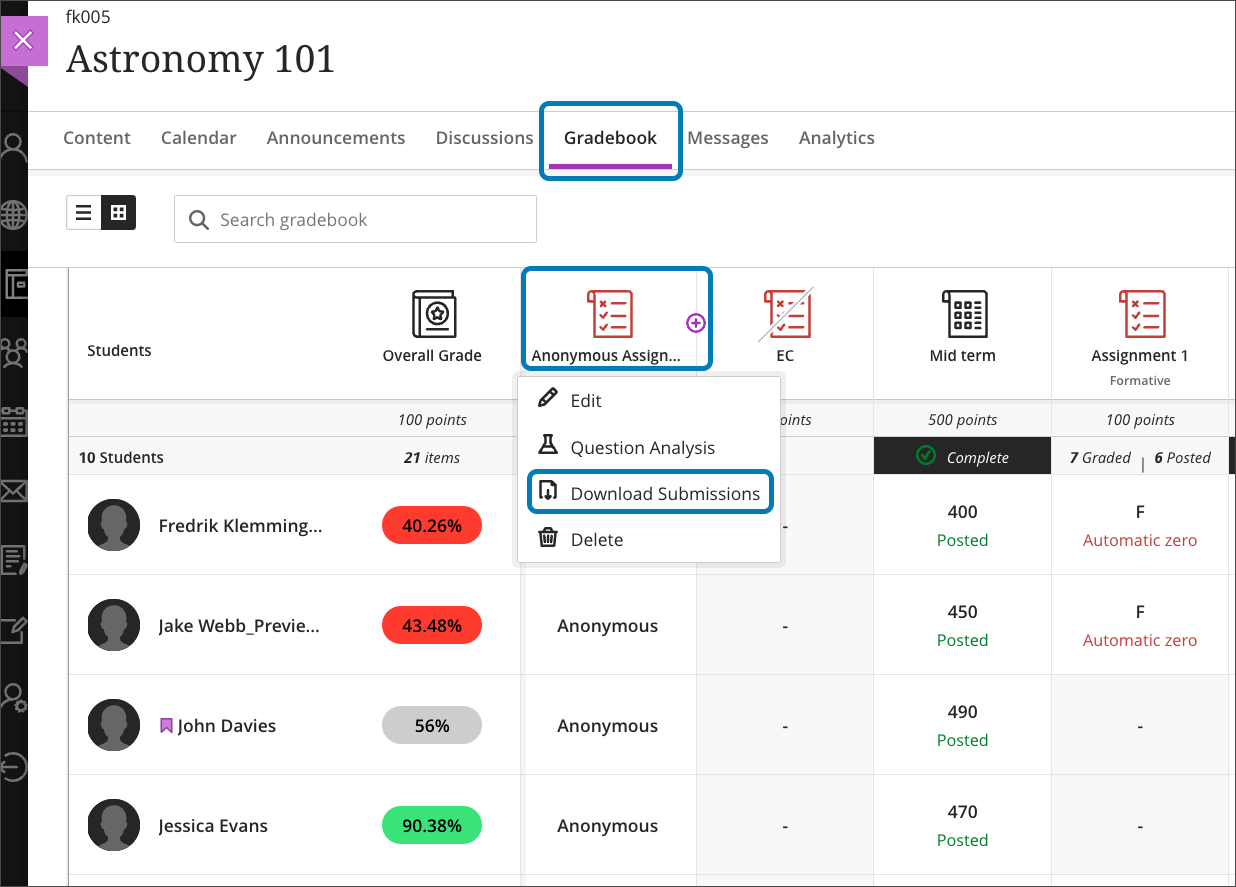
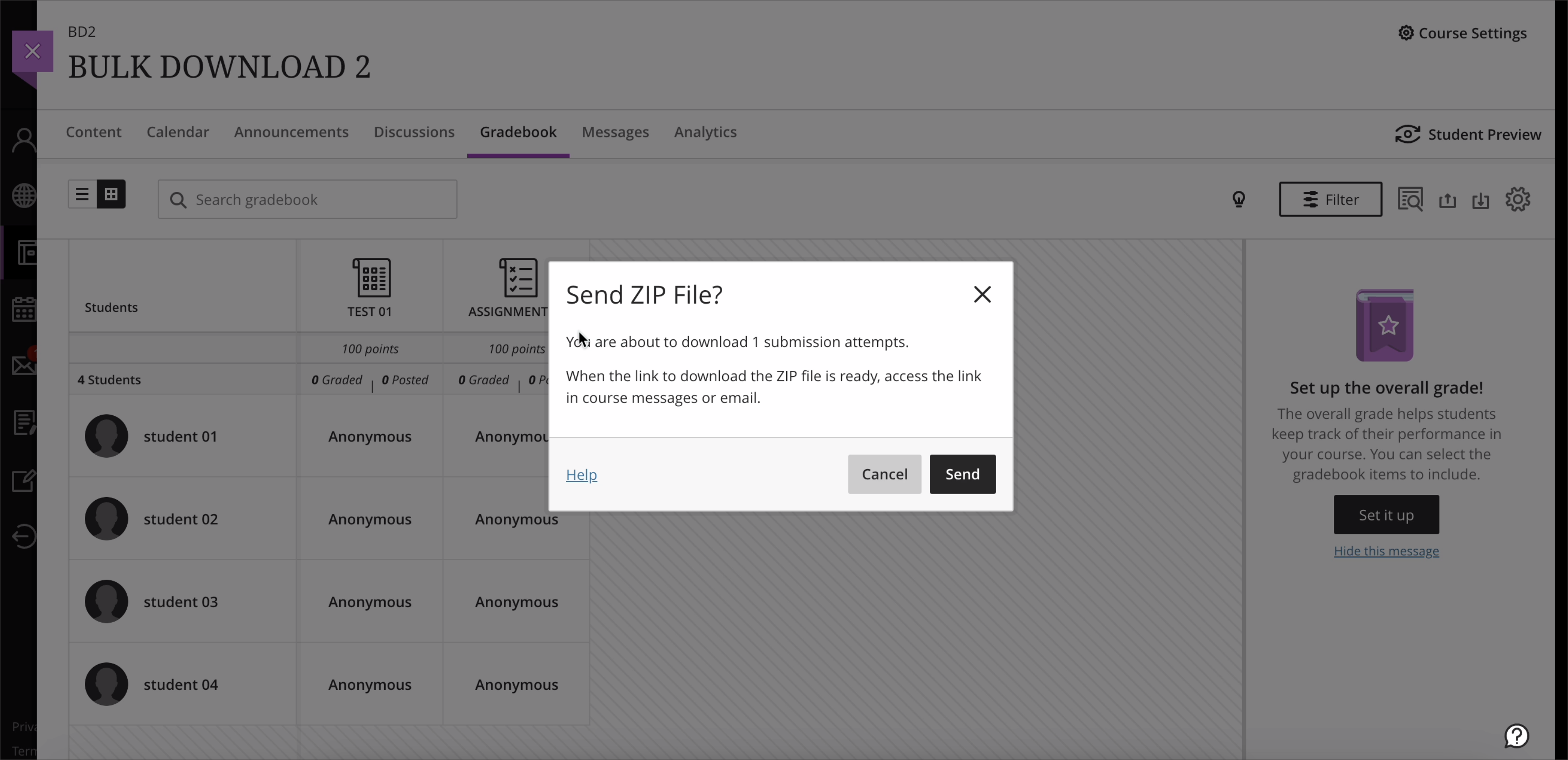
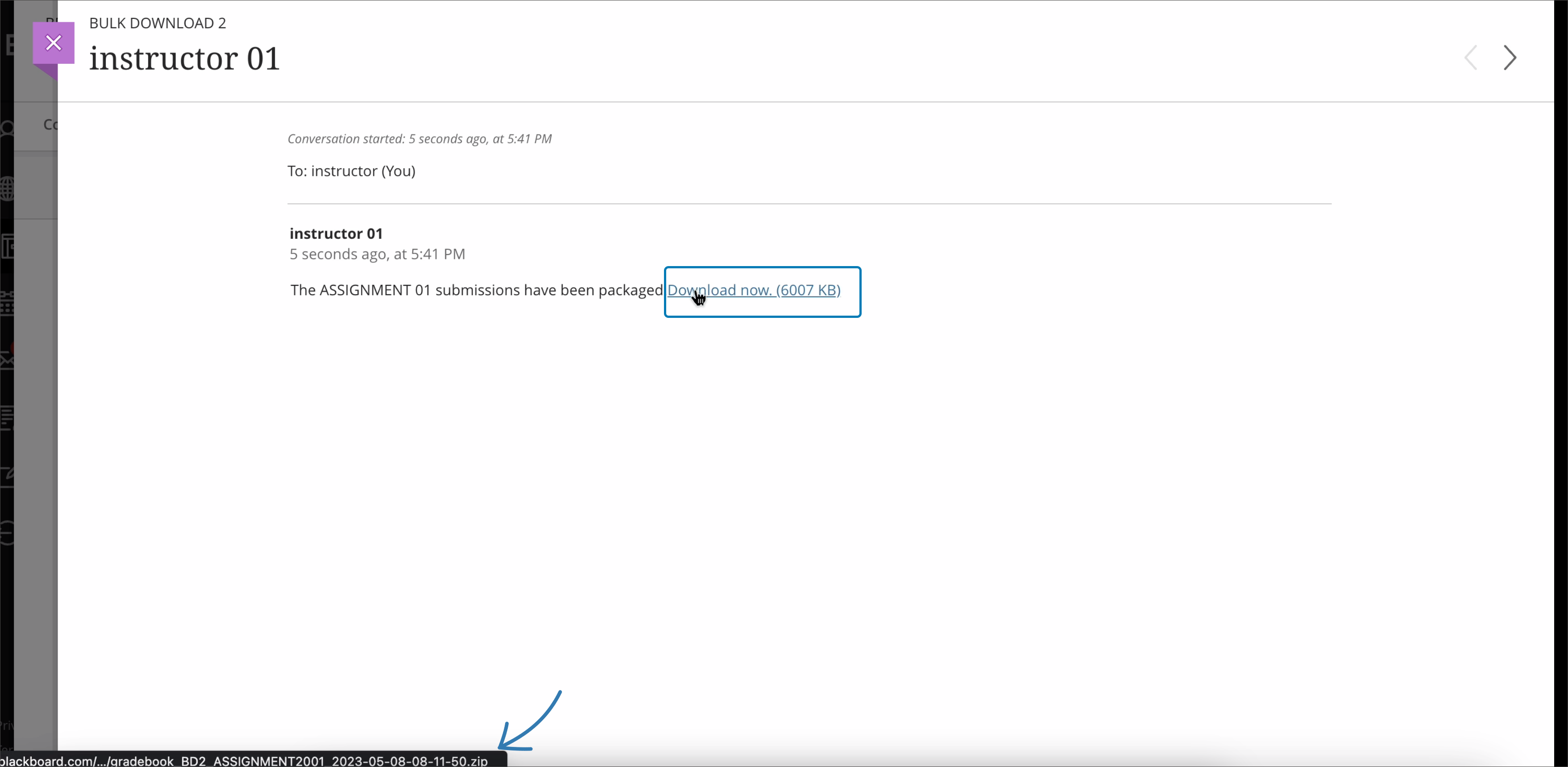
]]>Find out more about Bulk download of anonymous submissions
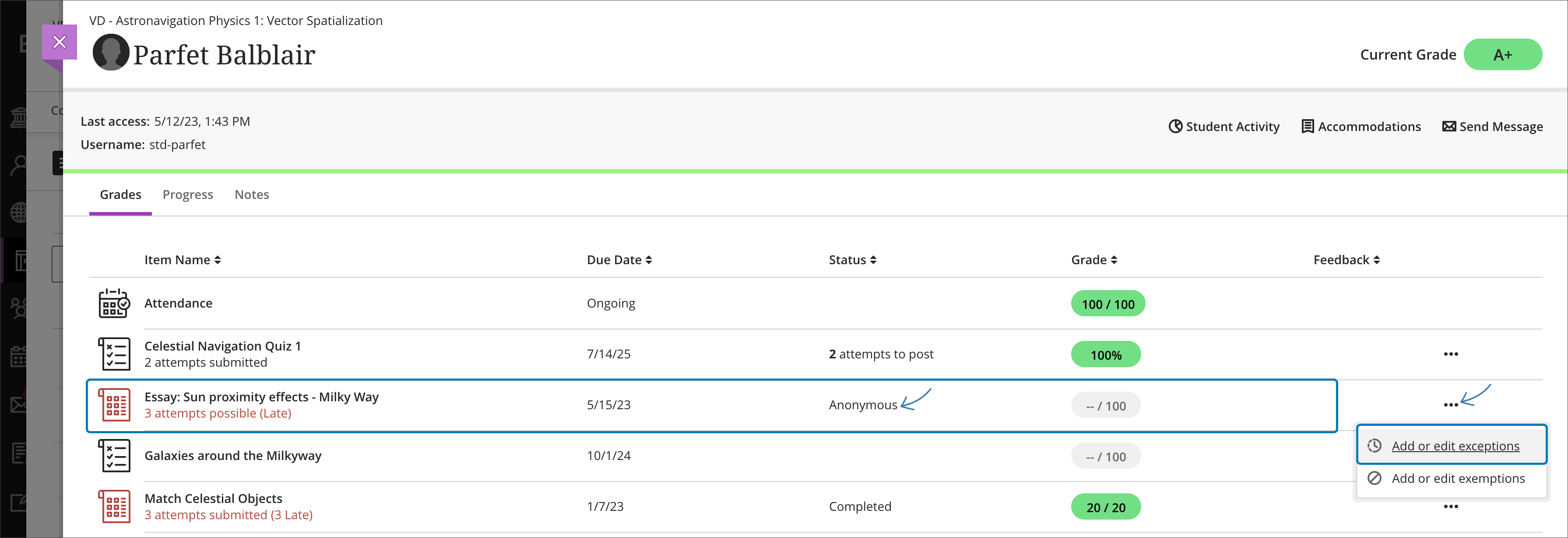
]]>Instructors now have the ability to grant student exemptions specifically for anonymously graded assessments, and they can access the options for exemptions for all assessments conveniently from the Student Overview page within the gradebook.
Find out more about Add exceptions for anonymously graded assessments
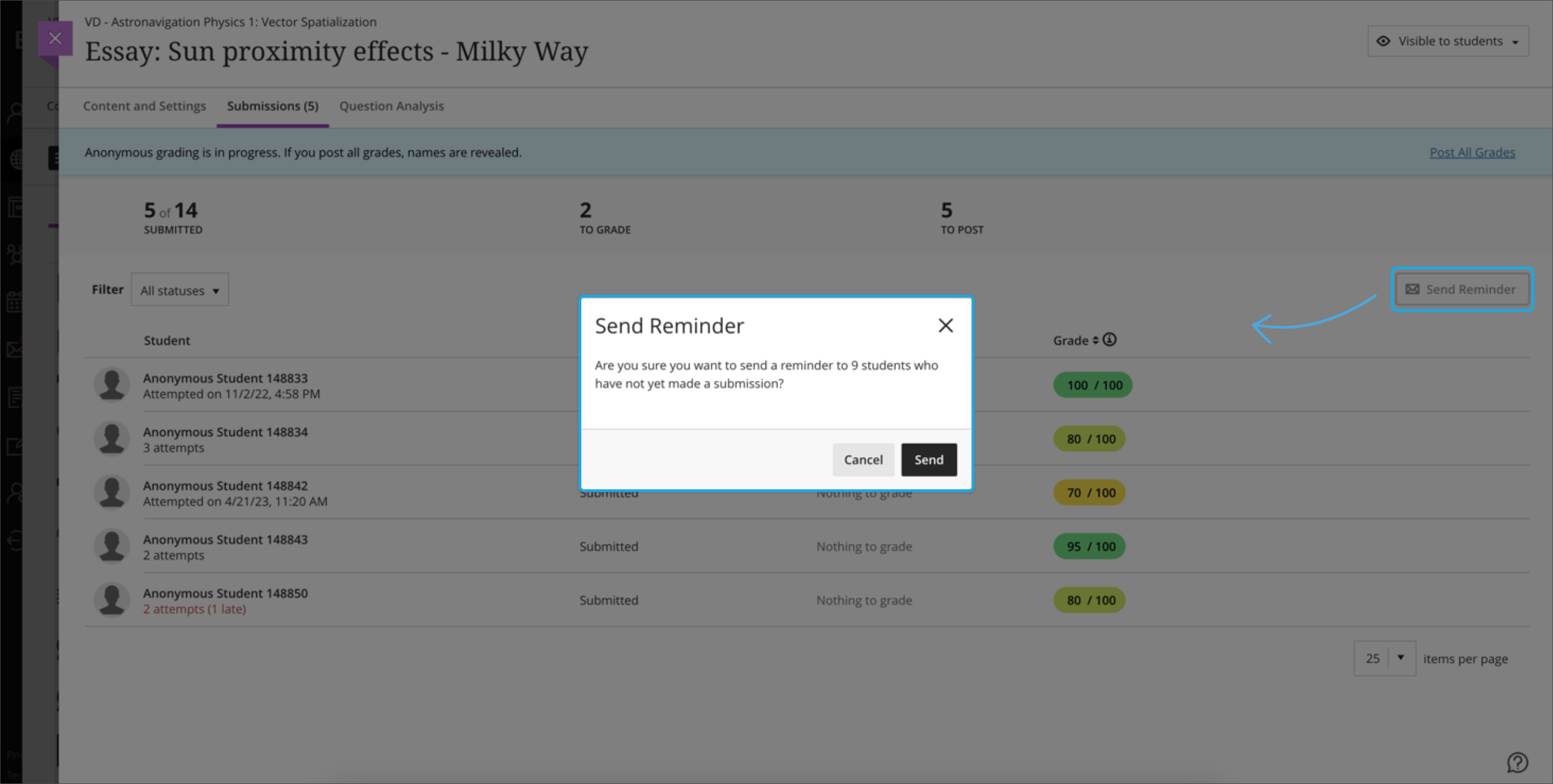
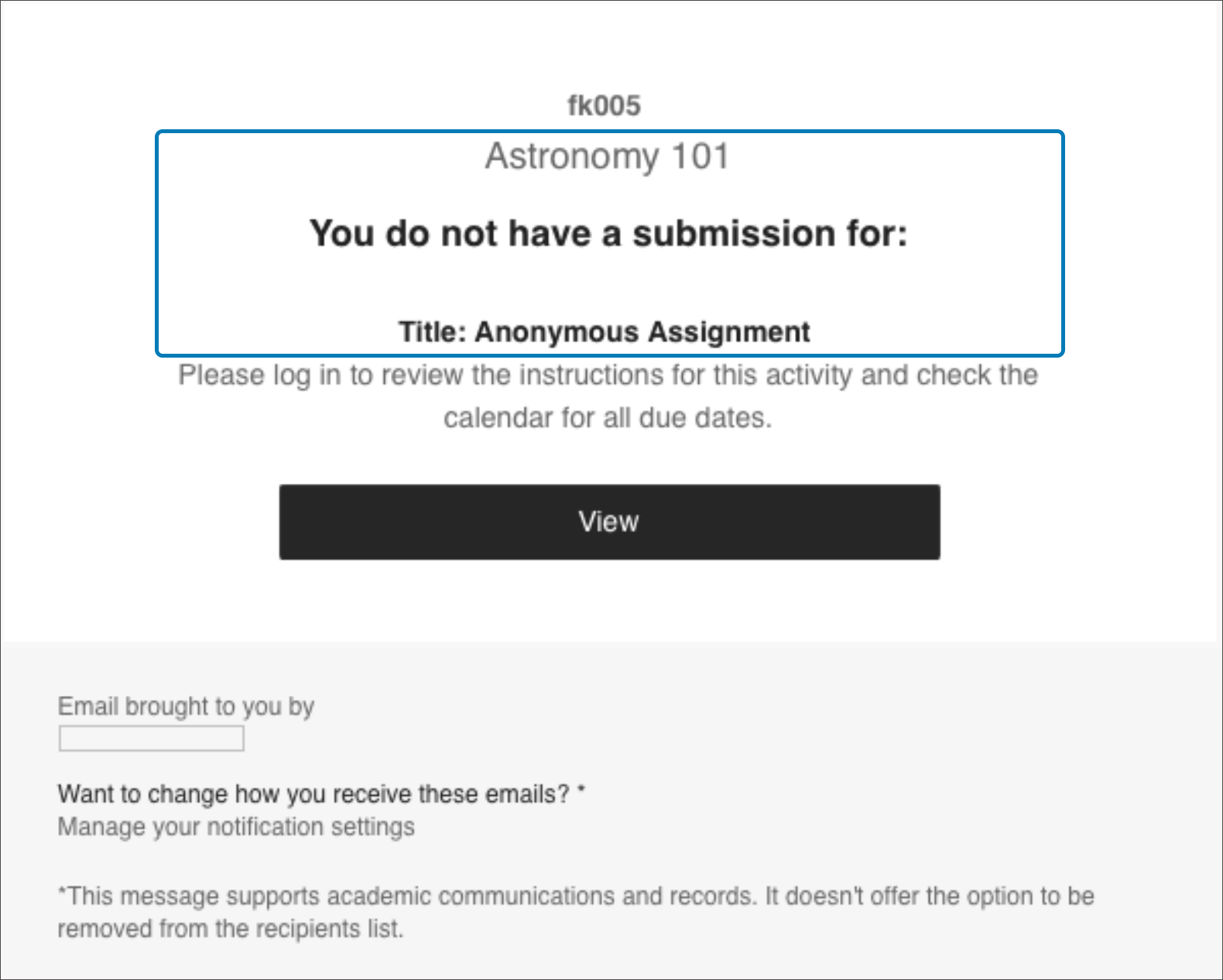
Instructors can now message students during assessments, including anonymously graded ones, using the filtering and selection options on the Submissions page, and a new "Send Reminder" feature allows them to send reminders to students who have not yet submitted their work.

Find out more about Send reminders to non-submitters for anonymously graded assessments
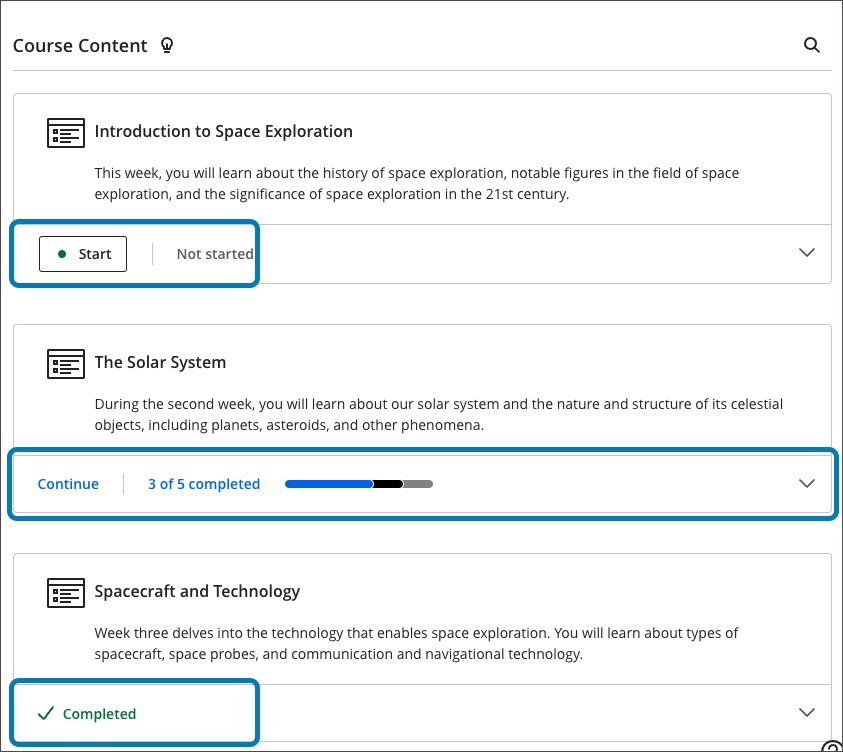
]]>![]()
Find out more about Progress Tracking and Start / Continue / Completed options for Learning Modules
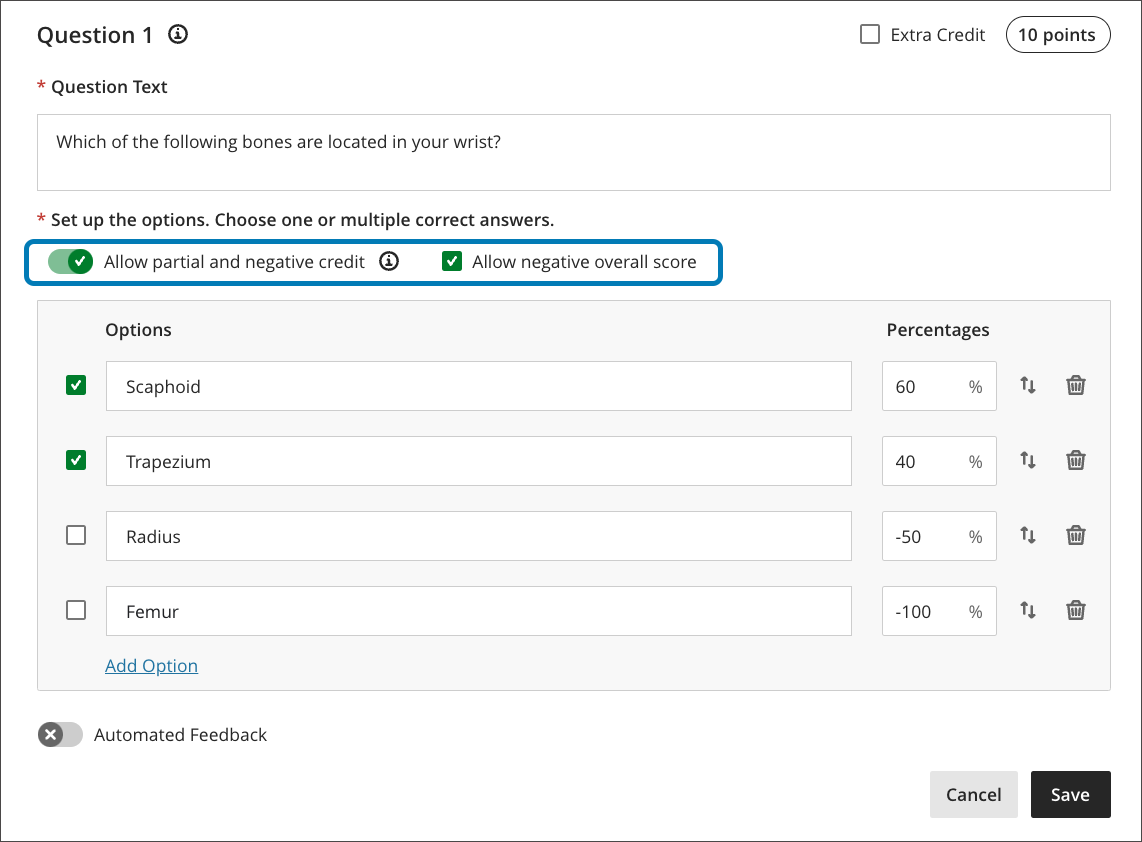
]]>
Find out more about Partial and negative credit improvements for the Multiple Choice / Multiple Select question type
]]>Find out more about Flexible Grading
]]>Find out more about Bulk download of anonymous submissions
]]>Instructors now have the ability to grant student exemptions specifically for anonymously graded assessments, and they can access the options for exemptions for all assessments conveniently from the Student Overview page within the gradebook.
Find out more about Add exceptions for anonymously graded assessments
Instructors can now message students during assessments, including anonymously graded ones, using the filtering and selection options on the Submissions page, and a new "Send Reminder" feature allows them to send reminders to students who have not yet submitted their work.

Find out more about Send reminders to non-submitters for anonymously graded assessments
]]>![]()
Find out more about Progress Tracking and Start / Continue / Completed options for Learning Modules
]]>
Find out more about Partial and negative credit improvements for the Multiple Choice / Multiple Select question type
]]>This is a great option for those schools who want to allow students access to their modules a week earlier than the specified SIMS started date.
Find out more about Manage Course Duration in Course Settings Panel
]]>
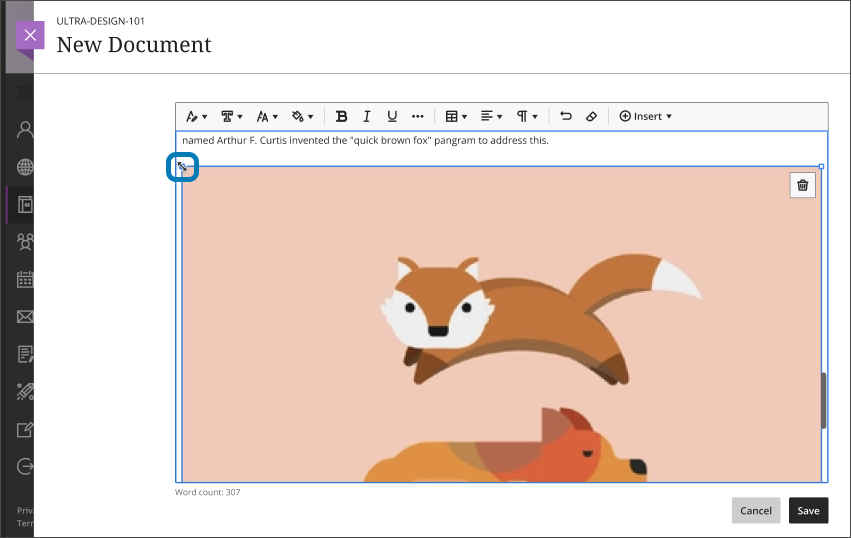
Find out more about Resizing media
]]>![]()
Find out more about Progress Tracking and Start / Continue / Completed options for Learning Modules
]]>
Find out more about Partial and negative credit improvements for the Multiple Choice / Multiple Select question type
]]>Instructors now have the ability to grant student exemptions specifically for anonymously graded assessments, and they can access the options for exemptions for all assessments conveniently from the Student Overview page within the gradebook.
Find out more about Add exceptions for anonymously graded assessments
Instructors can now message students during assessments, including anonymously graded ones, using the filtering and selection options on the Submissions page, and a new "Send Reminder" feature allows them to send reminders to students who have not yet submitted their work.

Find out more about Send reminders to non-submitters for anonymously graded assessments
]]>Final version at https://xerte.cardiff.ac.uk/play_18321#module-setup
]]>
The Structure and Organisation theme of the Learning Central Good Practice Guide is about helping students to navigate all of their Learning Central modules with ease.
Consistency in Learning Central has been a central theme of student feedback this year. Each module will be rolled over with the school or university template. There are two folders at the top of the module. Please don't move or remove these, so that students can always find them:
Beneath these folders comes a sequence of Learning Modules for your learning materials. Folders and Learning Modules can contain subfolders.
.png')
]]>
]]>
If you record a welcome video to your computer, follow the instructions below to upload it to the Panopto folder for your module and add it to your content. (NB You will need to set up Panopto in your module before you do this.)
]]>Although assignment submission points don't have to be created at the start of the module, students have told us that it is important that an assessment overview is available at the beginning of the module so that they know what to expect.
]]>]]>
Video guide to importing content into a module:
]]>
.png')
We strongly recommend that you copy content in manageable chunks and check it as you go along to make any revisions, adjust dates, etc.
]]>.png')
In the next section we will consider optimising your Learning Materials in more detail.
]]>Video guide to importing content into a module:
]]>
The Learning Materials theme of the Learning Central Good Practice Guide, is about giving students easy, timely, and flexible access to high quality learning materials.
While you are renewing your module, consider reviewing the usability of your content. Student feedback highlights the need for a consistent structure across modules, and timely uploading of learning materials.
]]>]]>
Have a look at the content of your module. Which quick wins could you make now - and is there anything else you'd like to improve in the future?
Do your learning materials have a clear and coherent structure, with a sequence of weekly or topic based Learning Modules? (You can easily convert folders to Learning Modules if necessary - see below.)
If there are multiple staff contributing to a module, is there agreement on the structure and format to avoid confusion for students?
Does your content have clear, searchable titles and descriptions? (For example, Week 2: Pitch and Flow of Sounds, rather than simply Week 2.)
Do you use Learning Central Documents to organise your content? Did you know that these can now include mini formative Multiple Choice Questions? (MCQs)
Do you use thumbnail images on your Learning Modules? These aid navigation and visually enhance the module.
Are there any unnecessary files or links at the top level of the module, (for example, additional links to discussion forums)? Could these be neatly organised within Learning Modules or the About your Module or Assessment and Feedback folders?
Could there be any multiple versions of the same document inadvertently lurking in different areas of your modules?
If you have previously added or imported learning materials into folders, you can easily convert them to Learning Modules by clicking on the 3-dots menu at the top right:
.png')
See Learning Central Essentials for more information on Learning modules and folders
]]>Video guide to adding MCQ Knowledge Checks to Documents:
See Learning Central Essentials for more information on Creating Documents
]]>Video guide to adding Thumbnail images:
See Learning Central Essentials for more information on Learning Modules
]]>Consider grouping content in units of more than one week of work. For example 'Week 1 & 2: xxxx and yyy', or even 'Week 1-4: xxxx topic'.
If you require more support, please contact LTAcademy@cardiff.ac.uk
]]>Try to have accessibility in mind every time you work on your module.
Learning Central's integrated accessibility tool, Ally, helps improve accessibility:
.png')
.png')
Ally automatically displays an accessibility score for files and Documents in Learning Central. You can click on this for suggestions of improvements you can make:
.png')
The Ally Course Accessibility Report gives an accessibility report for a whole module. This lists the accessibility issues in order of priority, from severe to minor, to help you decide which to fix first.
For more information see:
]]>However, to avoid frustration for staff and students, it's important to understand a few basic principles about how Panopto is integrated with Learning Central, and what to do when you have a new module.
]]>]]>
]]>
The tasks in this section can always be completed later, as long as the Assessment and Feedback folder has been set up with an Assessment Overview.
You can carefully copy assessments of various types into your new module, being sure to check the dates, settings and visibility of each.
]]>You can carefully copy assessments of various types into your new module, being sure to check the dates, settings and visibility of each.
]]>.png')
.png')
See Learning Central Essentials for more information on:
Video guide to importing content into a module:
]]>
]]>
.png')
The Overview tab highlights the items that need marking and those that need posting.
.png')
Did you know that you can click on the Students tab to view Analytics such as Progress Tracking and Activity Log information for each student, or sort on Last Access for an overview of engagement?
See Managing Marks and Feedback for more information.
]]>
See Setting up your Gradebook for more information.
Marks will only be released to students when they are Posted, either manually or automatically. (Except in the case of Turnitin assignments, where the release of marks is controlled through the Feedback Release Date.)
For full details see Column and Grade Visibility
]]>(Reminder of Discussion notifications, anonymity?)
]]>We have also included some 'Next Steps' as suggestions of additional tasks you may wish to undertake to improve the Ultra Courses experience for your students.
]]>If you wish to make your module available earlier than the date specified on SIMS, simply go to the 'Course Settings' in the top right corner of your module. Then click on the 'Edit' button for the Course Duration box where you can either select the start date you wish or if you want to release the module straight away you can change the 'Type' dropdown menu to and select 'Ongoing'.
]]>These are some additional features/links you may want to add whilst undertaking your final checks.
Turnitin Assignment Advantages:
Blackboard Assignment Advantages:
Quick Tips
| Feature | Category | Turnitin Assignment | Blackboard Assignment | Notes |
|---|---|---|---|---|
| Compatible with Buddycheck | Group Work | Limited - Buddycheck works but when it comes to group assignment, Tii requires manual mark input for each group member which is "repetitive and time-consuming"; marks and feedback are not automatically shared among group members. | Yes - Buddycheck available through Course Tools; Ultra Assignments recommended as marks are automatically shared with all group members when marked, enabling efficient peer evaluation workflow | Both support Buddycheck, but BB Assignment provides automatic mark sharing for efficient Buddycheck workflow, while Turnitin requires manual mark distribution. Generally Turnitin is not recommended for group assessment. |
| Group Submission | Group Work | No - Requires separate assignments for each group; each student must upload individually | Limited - Blackboard Ultra supports group assignments natively, however, enabling Turnitin similarity report feature within that assignment is not compatible with group submission functionality. Turnitin similarity reports are only generated for individual submissions. Therefore, if you require originality checking, you must use individual assignments instead of group assignments. | BB Assignment group functionality is restricted when Turnitin integration is enabled. For group work with originality checking, separate individual assignments are required. |
| Anonymous Delegated Marking | Marking | Possible - Can combine anonymous marking with group-based delegated marking, but markers see each other's feedback; requires complex setup and coordination | Yes - support for anonymous marking with both delegated and parallel marking | Both can handle this, though BB Assignment's delegated marking is more robust overall |
| Reasonable Adjustments - Hard Coded? | Accommodations | No - Cannot set different due dates for individual students with extensions. Extensions need to be facilitated through separate portals. | Yes - Through Gradebook, you can set exceptions for students with different due dates | BB Assignment offers more flexibility for accommodating students with reasonable adjustments |
| Originality Report | Feedback | Yes | Yes - When Turnitin integration is enabled, but not available for group assignments, peer review, or parallel marking | Both provide originality reports, but BB Assignment has some limitations in specific scenarios |
| Multiple File Submission | Submissions | No - Students can only submit one file | Yes - Students can submit multiple files | Significant advantage for BB Assignment when students need to submit portfolios or multiple documents |
| Maximum File Size | Submissions | 100MB - Hard limit | No file size limit (though not suitable for video files) | For similarity reports in BB Assignment, files should not exceed 100MB.
Reference: Leeds University Staff Guide - "Blackboard Assignment or Turnitin?" |
| Anonymous Marking | Marking | Yes - Complete anonymity until feedback release; can reveal individual student names during marking; anonymity cannot be restored once removed | Yes - Complete anonymity until all marks are posted; cannot reveal individual names during marking process. Caution: Bug identified in Jan 2025 that can compromise anonymity when clicking 'information' button during marking | Both support anonymous marking but BB Assignment has workflow restrictions and current anonymity bug. Turnitin allows more flexible individual name revelation during marking process. Important to note that Anonymity is not total where cover sheets include student ID numbers etc'. |
| Delegated Marking | Marking | No, requires Multiple Markers feature turn on | Yes - Native support with Standard Delegated Marking and Parallel Marking options; built-in reconciliation workflow, automatic assignment distribution.
⚠️ Limitations: Single mark: Unlike "Parallel Marking" where two markers mark the same student's work, in Delegate Marking, only one marker is responsible for grading each student's submission. If two markers accidentally mark the same paper, the second mark will overwrite the first one. Currently, Delegate Grading cannot be used for group assessments or in conjunction with Parallel Grading. |
BB Assignment has native delegated marking with formal reconciliation, while Turnitin requires complex workaround setup |
| Adaptive Release | Feedback | Limited - If assignment is hidden using Release Conditions, Gradebook column and mark will still be visible after Feedback Release Date | Yes - Better integration with Blackboard's release conditions | BB Assignment provides more seamless adaptive release functionality |
| Single submissions | Submissions | Yes - you can specify the assignment only allows for a single upload attempt by using the 'Students cannot resubmit' option | Yes - you can specify the assignment only allows for a single upload attempt by keeping the 'Attempts allowed' setting to the default of '1' in the assessment settings in the right-hand side pane when creating the assessment. | Generally, not recommended these settings are used as they can cause additional administrative overheads by students submitting incorrect files or wanting to revise their submissions before the due date. This requires staff to manually delete the previous attempt in a timely manner. |
| Multiple submissions (Until due date) | Submissions | Yes - allows student unlimited attempts until due date. This can be specified by using the 'Students can resubmit until due date' option. However, originality reports are only generated 3 times within a 24 hour period of resubmitting multiple attempts. | Yes - by changing the 'Attempts allowed' setting from the default of '1' to however many attempts you would like students to have, or the 'unlimited' option at the bottom of the drop down menu to replicate Tii. | Changing to "Unlimited Attempts" is the preferred setting to reduce admin overhead. However it is worth noting that unlike Turnitin, there does not seem to be the same limit for 3 originality reports in 24 hours, however it can take up to 24 hours for an originality report to generate when enabling originality report in Bb assignments. |
| Overwrites Previous Student Submissions | Submissions | Yes - When multiple attempts are allowed, only the last attempt is preserved | No - Allows students to submit and retain multiple drafts | Different approaches - Turnitin replaces, BB Assignment preserves all attempts. |
| Multiple submissions within 24-Hour late period | Submissions | No - After the due date has passed if students have not already submitted they can only submit once after which the assessment is locked. In the event the student need to resubmit either due to an incorrect or updated file within the 24 hour period a member of staff must carefully delete the original submission allowing the student to submit once again. Schools need to monitor and respond quickly to such requests, otherwise Extenuating Circumstances or appeals may arise if requests not handled within 24 hours. | Yes - There are no restrictions on resubmissions after due date. Students can continue to submit multiple times within 24-hour late period as long as the link is available. However, this flexibility means students who already submitted on time could resubmit after the due date and inadvertently be allocated the 40% grade cap if the wrong submission was marked.
Important: Advise students that any submission made after the due date may result in the 40% late penalty being applied even if they submitted before the due date. |
Turnitin provides better protection against accidental late penalties for students who submitted on time, but requires manual intervention for legitimate late resubmissions. BB Assignment offers more flexibility but requires clear student communication about late penalty risks. |
| Collates Each of a Student's Submissions | Submissions | No - Only preserves final submission | Yes - Retains all submission attempts | BB Assignment provides better submission history tracking |
| Offline Submissions | Marking | No – Primarily used for online submission | Yes – offers native offline submission | BB Assignment provides native function to accommodate offline submission |
| Staff Upload on Behalf of Student | Marking | Yes - Staff can submit on behalf of students | No - No capability to submit on behalf of students | Turnitin has advantage for handling late or technical submission issues by submitting on behalf of students. |
| Late Submissions Clearly Labelled | Submissions | Yes | Yes | Both systems can handle this |
| Download Assessment and Feedback in One Document | Feedback | Yes - All feedback (except voice comments) can be exported to annotated PDF. This can include the similarity report if required. | Yes - Both original submissions and annotations can be downloaded in one document, but not the overall feedback | Turnitin provides better feedback export capabilities |
| Download Assessment and Feedback Separately | Feedback | Yes - Can download original submission separately | Yes - Can download original files and the overall feedback separately, but not the annotations. | Both support separate downloads |
| Single Feedback Date | Feedback | Yes - Has feedback release date functionality | Yes - Supports posting all marks together | Both can handle unified feedback release |
| Multiple Feedback Dates | Feedback | Limited - Cannot set different feedback dates for individual students | Yes - Can post marks individually if not anonymous | BB Assignment offers more flexibility for multiple feedback release |
| Automatic Mark and Feedback Release | Feedback | Yes - Can set automatic feedback release date | No - marks need to be posted manually for release on a specific date' | Blackboard assignment marks are either released individually as soon as they are marked or all together with manual posting |
| Manual Mark and Feedback Release | Feedback | Yes - Manual control over feedback release | Yes - Manual posting control available | Both provide manual override capabilities |
| Blind Double Marking (Parallel Marking) | Marking | No - Requires workaround with separate assignments and manual reconciliation | Limited - Parallel marking is available but with limitations:
|
BB Assignment has built-in support, though with some limitations when Turnitin integration is used |
For further assistance with choosing between Turnitin Assignment and Blackboard Assignment, please contact your local Digital Education support team.
]]>Learning Modules are a special type of folder designed for collections of learning materials and activities. Students navigate sequentially through a linear structure, almost like an e-book, enhancing the 'flow' of reading and learning.
We recommend organising Ultra course materials within learning modules by week, topic, session, etc, as appropriate.
Learning modules can contain folders if it helps to organise large amounts of content.
Folders are simply used to gather together multiple files in a single 'container'. We recommend placing module-wide reference materials and useful resources in a top level folder.
Please Note: It is vital that you map out in advance how your content will be structured and organised, ideally in consultation with other colleagues/module leads on your programme. This will ensure a consistent approach and greatly enhance usability for both students and staff.
]]>You can create one more level of folders inside a Learning Module. These will also have sequential navigation.
To create a learning module:

Select 'Create' and then select 'Learning module'.
Click on the default name ('New Learning Module..') to rename it to something that accurately explains what the folder is for.
Add to the description field with clear, concise information describing what the content item is about, who it is for and what it contains.
You can optionally add a thumbnail image to add visual identity to your learning module.
If you want students to access this content immediately (or as soon as they have access to the module) change the drop-down option from 'Hidden from students' to 'Visible to students'.
Tick the 'Forced Sequence' option if you want to ensure students work through the learning module in the required order.
Select 'Save' - your new folder will now appear.
Helpful hint: when creating new learning modules items, always rename them and complete the description fields. This helps students understand what content is without having to access it.
]]>For a quick guide on how this tool operates, check out the short video below.
Folders work well for resources that students are more likely to access as a point of reference, as and when required (e.g. module information, assessment information).
You can create two levels of folders to organize your content. To create a folder:

Select 'Create' and then select 'Folder'.
Click on the default name ('New Folder...') to rename it to something that accurately explains what the folder is for.
Add to the description field with clear, concise information describing what the content item is about, who it is for and what it contains.
If you want students to access this content immediately (or as soon as they have access to the module) change the drop-down option from 'Hidden from students' to 'Visible to students'.
Select 'Save' - your new folder will now appear.
Helpful hint: when creating new folders, always rename them and complete the description fields. This helps students understand what content is without having to access it.
]]>If you have previously added or imported learning materials into folders, you can easily convert them to Learning Modules by clicking on the 3-dots menu at the top right:
.png')
It is also possible to change learning modules to folders. (Instructors are warned that all learning module functions are removed when converting a learning module to a folder.)
]]>It is recommended that you use the top two folders for module-wide information such as a module handbook and reading list, together with all the module assessment information and summative submission points. This will give students consistency across modules so they can always easily find this information.
Following on from these, the learning modules will contain the main learning materials, and enable students to work through a flow of content. These can be broken down either on a week-by-week basis, or another structure that makes logical sense in the context of your module.
Below is an example of a structure that will help students navigate with ease and guide them through their learning content.

We need to ensure that our teaching and learning activities, our online learning environment, and our resources, are accessible to our diverse community of learners and to design out any barriers that may prevent learners from achieving their full potential.
Find out more about digital accessibility
You will find advice about accessibility throughout this guidance, but a few overall pointers are highlighted below:
]]>Click on the Ally icon by content items to download alternative formats:
Watch a video by Blackboard on an overview of Ally:
Ultra has and integrated accessibility helper, Ally
Ally measures the accessibility of each file attached to your course and shows you at-a-glance how it scores. Scores range from Low to Perfect. The higher the score the fewer the issues.
![]()
![]()
![]()
![]()
For files with Low to High scores, Ally shows you the issues and gives a step-by-step guide on how to fix them.
]]>
Ally’s course accessibility report includes Overview and Content tabs so that you can get the big picture as well as specific details about the accessibility of your digital course content.
The Overview tab shows the accessibility score for the course, course content grouped by content type, and a list of all accessibility issues identified in the course
The Content tab shows you the content with any accessibility issues found.
Watch a video to see how to launch the Ally accessibility report:
]]>Ally allows you to fix some issues within Learning Central such as adding missing alt text and contrast or formatting issues found in Ultra documents. Ally can also identify issues with documents that have been uploaded to Learning Central (Word Docs, PDFs, PowerPoint slides) and these will need to be fixed in the original files and re-uploaded. Ally allows you to do this within the report so you do not have to locate individual files in the course to replace.
It is advised that you prioritise Severe and Major issues to improve the overall accessibility of the course. Minor issues should be considered when appropriate to improve the accessibility score.
Watch a video to see how to fix accessibility issues with Ally:
The Blackboard Help Center provides detailed information about the Course Accessibility Report.
]]>
Ensure there is sufficient contrast between text and background, but avoid very high contrast (for example, use a dark grey on an off-white background). Use a simple sans serif font (the default font is often best). Avoid italics, block capitals or underlining; use bold for emphasis only. Left-justify your text. While it is tempting to focus only on aesthetics, these formatting choices can benefit a range of learners, including both visually impaired and neurodiverse students.
]]>Use images selectively, and describe the appearance and function of each image. Many applications have specific 'alt text' functionality, otherwise you can add it alongside the image. This can particularly help those with visual impairments as the 'alt text' can be read by screen reader software, which cannot access the image contents otherwise (this is why text within images is inaccessible).
Adding Alt text in Blackboard - when you add an image into the content editor in Ultra, you will be presented with file options - this includes a space to enter alternative text. If your image is purely decorative you should tick the relevant check box - this will tell screenreaders to ignore this image.
When you create a hyperlink (a web link to another resource or website) use as the linking text words or a phrase that describe what you are linking to, rather than a generic phrase like 'click here' or the URL itself. For example: rather than 'for information on making link text meaningful click here' use 'read more about making link text meaningful'. This helps learners navigating using a keyboard, including visually impaired learners using a screen reader.
]]>Please Note: New content is hidden from students by default. You will need to change its visibility via its dropdown list for students to access it.
]]>

.png')
Documents can be put together from a variety of Blocks. These can be dragged and dropped and resized to create an attractive grid layout.
Blocks can be built from scratch with the Editor, or you can automatically convert a file, such as Word, PDF or PowerPoint, into an editable block. This is a good option for accessibility, however content should be checked after uploading for any anomalies.
]]>
The Document will open in Editing mode. Enter a title for your document page:
.png')
.png')
.png')
.png')
.png')

The Document will open in Editing mode. Enter a title for your document page:
.png')
.png')
.png')
.png')
.png')
]]>
.png')
.png')
.png')
.png')
.png')
.png')
.png')
.png')
.png')
In this way, you can create attractive grid layouts, which are responsive on mobile devices.
If you make a mistake, you can use the Back button to undo:
.png')


]]>


The Panopto integration with Learning Central is detailed below.
For full details of the platform see the Cardiff University Panopto resource. This covers: Personal Capture in the Panopto recorder, basic and advanced editing, captions, quizzes, roles, permissions and sharing, statistics and results.
Please Note: It is not appropriate to upload large media files directly to Ultra. If you have any audio or video files that you would like to include in your module, See Uploading media files to Panopto.
Jump to:
]]>.png')
Select the 'Panopto Recordings' option
.png')
NB This action will now have set up the link between Panopto and Learning Central for this module.
After selecting the Panopto Recordings option you will be able to view, edit and manage all the recordings for this module.
.png')
Please Note: Students will also be able to see any videos that are available for viewing through the 'Details & Actions' menu.
]]>


.png')
.png')
.png')
.png')
Please Note: Large media files should NOT be uploaded directly to Learning Central. This quickly uses up module file quotas and provides a less efficient viewing experience for users.
]]>.png')
.png')
.png')
.png')
Please Note: When you copy videos in bulk, the new copies will become video reference copies. These are identical to the originals, minus any viewer-contributed metadata such as quiz results, comments, or notes. If you want to edit a reference copy, by default this will change both the new copy and the original. Alternatively you will have the option at the editing stage to create an independent copy. You can find more details in Learn About Video Reference Copies.
]]>


Note: When you first copy a recording, it will inherit permissions from the new folder. The default in Panopto is that you need to make recordings available to students before they can be viewed, so this may need to be adjusted in the new module.
]]>This section describes the Panopto integration with Learning Central.
For full details about Panopto see the Cardiff University Panopto resource - including: Personal Capture in the Panopto recorder, basic and advanced editing, captions, quizzes, roles, permissions and sharing, statistics and results.
Please Note: It is not appropriate to upload large media files directly to Ultra. If you have any audio or video files that you would like to include in your module, See Uploading media files to Panopto.
Jump to:
]]>.png')
Select the 'Panopto Recordings' option
.png')
NB This action will now have set up the link between Panopto and Learning Central for this module.
After selecting the Panopto Recordings option you will be able to view, edit and manage all the recordings for this module.
.png')
Please Note: Students will also be able to see any videos that are available for viewing through the 'Details & Actions' menu.
]]>


.png')
.png')
.png')
.png')
Please Note: Large media files should NOT be uploaded directly to Learning Central. This quickly uses up module file quotas and provides a less efficient viewing experience for users.
]]>.png')
.png')
.png')
.png')
Please Note: When you copy videos in bulk, the new copies will become video reference copies. These are identical to the originals, minus any viewer-contributed metadata such as quiz results, comments, or notes. If you want to edit a reference copy, by default this will change both the new copy and the original. Alternatively you will have the option at the editing stage to create an independent copy. You can find more details in Learn About Video Reference Copies.
]]>


Note: When you first copy a recording, it will inherit permissions from the new folder. The default in Panopto is that you need to make recordings available to students before they can be viewed, so this may need to be adjusted in the new module.
]]>]]>


Note: If you would like to provide individual articles for your students, please always add a link to the article in the library (see below), rather than uploading a PDF to Ultra. This will allow the library to keep accurate records of access data.
]]>
You can also link directly to component parts of your reading list, such as a section (e.g. week / topic) or an individual item (e.g. journal article / book chapter).
The following video shows how to add reading list links to a folder or learning module in Ultra Courses - it covers adding a link to the whole reading list and adding a link to a section (week or topic). This second method can also be used to create a link to an individual item (e.g. journal article / book chapter).
Please Note: The time and date in Ultra are taken from the timezone setting of your device. (NB This is not always the same as the time shown on the clock, or the network time in the browser, so care should be taken if travelling). Release dates and due dates will automatically be converted to the timezone of users' devices. For more details see Working with Timezones, below.
]]>
.png')
.png')
Click Save to save Rule 1. The content will display when all the criteria of Rule 1 are fulfilled.
Please Note: If you specify several criteria under Rule 1, each of these must be true in order to trigger the rule and display the content. This is where you can specify 'AND' rules.
You may then go on to add additional rules for the content item. This is where you can specify 'OR' rules.
To add additional rules for the content item:
.png')
Add the criteria for rule 2:
.png')
You can see that a second release condition has been added for this content item. The content will now display if either rule 1 OR rule 2 is triggered:
.png')
When will content appear? determines whether the content will be completely hidden if students don't fulfil the condition to view it, or whether it will appear to students as a non-clickable placeholder on the Content page:
.png')
For students, times and due dates will automatically be converted to their local time, as defined by the timezone property of the device they are using. If you have students studying in different timezones, it may be worth making them aware that any submission deadlines mentioned in UK time will automatically convert to their local time in Ultra.
The utmost care should be taken if you ever need to set up assignments or adjust release times while you are out of the country. In this case, first ensure that the timezone property of your device is set to UK time. The illustration below shows a Test which was set up while on Central European Time, and automatically converted to GMT for users in Britain.
It is possible to check the timezone of the deadline in the test settings, but it doesn't display in the description on the Content page. It is only displayed to students after opening the test.
.png')
Please note: When exiting Student Preview, if you choose to Discard the information, your student preview account will be removed without trace. However if you choose to Save, all activity will remain visible in the course until you enter Student Preview again and Discard it.
]]>

Note: You won't be able to use Student Preview or make changes in a completed course.

![]()
.png')
If you choose to Discard the information, your student preview will be removed without trace. However if you choose to Save, all activity will remain visible in the course. You will be able to see any submissions made by the user and, for example, use them to practise marking, before returning to the same student preview to view the feedback that you left.
Students enrolled on the course will also be able to see any preview user data until it is discarded, and respond to any comments you may have made (i.e. on discussion boards) while in preview mode.
]]>


]]>
You can add the content and tools on the Course Content page alongside your other course materials or insert them directly to the editor in your course's assignments, tests, and documents.
.png')
Expand the links below to see the step by step guide in action.
]]>To do so,


In the editor, select Insert content > Content Market
.png')
Consider the needs of your course and the desired user experience when choosing between these options.
Notes on the Differences
LTI Tool link: The Xerte object slides in at full screen within Ultra, allowing students to access the Xerte content at a larger scale without leaving the course content area.
Web Link: The Xerte opens at full screen in a new browser tab or window. This option is suitable for linking to external resources or when a more integrated experience is not essential.
Embed Option: One or more Xerte objects can be displayed in the context of an Ultra Document. This provides the closest integration with your Ultra content, however the Xerte object will be displayed within the Ultra Document rather than at full screen.
Please note: It's important to ensure that the Xerte object's access level is set to "Public" to prevent any issues with student access.
]]><iframe src="THE-URL-OF-YOUR-XERTE" width="100%" height="665" frameborder="0" style="position:relative; top:0px; left:0px; z-index:0;"></iframe>
If you have copied embed code generated by Xerte, you are recommended to change the parameter width="800" to width="100%" to ensure that the Xerte object will be responsive to screen size, particularly on mobile devices.
]]>Please be cautious when using the Unused Files tool in Learning Central. This tool may flag important files in course packages created with tools like iSpring, Articulate, or Adobe Captivate as “unused.” Deleting these files could disrupt the packages. If your module includes such packages, you can still use the tool but should take extra caution. Only delete clearly identifiable files and avoid deleting any that may be part of a package.
Pro Tips: Always make backups before using this tool for bulk file cleaning.
.png')
.png')
.png')
This feature serves several important purposes:
Please note: While Export Course Packages is helpful for backing up and archiving course content, it is not recommended as a primary tool for copying content between courses. For copying content, use the dedicated Course Copy function to ensure all settings, links, and course elements transfer correctly.
]]>When exporting, you'll have two main options:

Once the export is complete, you'll be able to download a ZIP file containing your course package. This file can then be imported into another Learning Central course or stored for future use. It's important to note that exported packages are automatically deleted from the system after 30 days, so be sure to download your export in good time.
]]>Detailed step-by-step guidance on this can be found in Portals with conditional student access.
]]>As soon as you log in, you have access to all the core features from the main menu where your name appears. You can easily return to this menu from wherever you are—even if you're in a course. The menu peeks from behind the other layers you have open.
When you select any link from this menu, you see a global view across all your courses. For example, Grades shows all your grading tasks organized by course, and Calendar collates events from all your courses.
]]>.png')
Institution Page - Useful Cardiff University links - Intranet, library search, My Timetable, email.
Profile - Click on your name to view and edit your profile information.
Activity Stream - The latest updates for all of your courses. Click on the shortcuts to open.
Courses - Access all past, present, and future courses.
Organizations - Access ongoing modules that are not rolled over year on year.
Calendar - View course events and due dates for all your courses. Use the settings icon to decide which calendars are displayed here.
Messages - View and send messages across all of your courses. Messages are organised by course.
Marks - See what needs grading across all your courses. Links directly to the Grade Centres.
Assist - A collection of online and campus resources to support all members of the university.
Tools - Access global functions that are outside of your courses.
Admin - Access LC admin (not available to all).
]]>All of your course content appears in the main part of the page. When you open a piece of content, it slides out in a layer on top of the Course Content page. Close layers to go back to a previous spot in your course.
See the video for a full overview of the interface, and the expandable links below for more details:
]]>
Class register - You can view who is enrolled on your course and can see additional student details. Students can view who is enrolled on their course, and see profile pictures, if these have been uploaded.
Progress Tracking - This tool gives students an easy way to keep track of what they have done inside the course by marking items as complete as they work through them. You may enable this tool in your courses, which also allows you to check on student progress.
Course image - You can use this tool to add a banner image to your course. The image should be at least 1200 x 240 pixels, and should not contain any text.
Course is open / private / completed - Visible to staff only. You can use this tool to set the course availability.
Books & Course Tools - you will be able to find some additional tools under Books and Course Tools, such as Cardiff Pulse, Learn Plus Recordings, Leganto Reading Lists and so on.
Question Banks - If you use Blackboard question pools in your Original module, you can import the pool here as a Question Bank for re-use. In Ultra Courses, Pools have been replaced with Question Banks.
]]>Please be aware that you do not have to complete all profile fields. Only fill in the information that you would like your students to know.
]]>

Helpful hint: If you are an Academic, you may also want to add a link to your University website profile in the 'website' field to emphasise your professional standing, any publications you have been involved in and/or research and subject specialisms.
Important!
Update your Privacy Settings to allow anyone on your courses to view your profile information. Otherwise students will not be able to see it!
.png')
]]>
In addition, all course staff and students are shown in the Class Register. Here you can drill down into profile information for staff and analytics information for students. .png')
It is possible to use these two areas to replace staff list documents altogether, if they are configured correctly.
Note: You won't see an envelope icon by your name as you can't send a message to yourself! Students cannot use the Message feature at this time.)
Click on Class Register to view all staff and students on the module:
.png')
]]>
For a quick guide on how this tool operates, check out the short video below.
Each module will be rolled over with the school or university template, to help unify the layout of Learning Central this year. Feedback shows us that students place a high value on consistency in Learning Central.
Work through the guidance below, ticking off each of the KEY TASKS, to efficiently populate your modules in line with the four themes of the Learning Central Good Practice Guide.
]]>Module templates are vitally important to ensure consistency across Learning Central - this is a central theme of student feedback.
Your template will contain two folders at the top of each module. Please don't move or remove these, so that students always be able to find them:
Beneath these folders comes a sequence of Learning Modules for your learning materials. You can organise your Learning Modules by week, topic, session, etc, as appropriate for your content.
Learning Modules can contain subfolders.
Content can be imported from previous modules at the level of individual items, up to the level of whole folders or Learning Modules.
We strongly recommend that you copy content in manageable chunks and check it as you go along, to make any revisions or minor adjustments such as dates.
]]>About your Module can also contain subfolders for specific information such as labs, study days etc.
Student feedback shows that fully populating this folder can greatly reduce student anxiety.
]]>
]]>
If you record a welcome video to your computer, follow the instructions below to upload it to the Panopto folder for your module and add it to your content.
]]>There can be one level of subfolders within this folder.
]]>Although assignment submission points don't have to be created at the start of the module, students have told us that it is important that an assessment overview is available at the beginning of the module so that they know what to expect.
]]>]]>
Video guide to importing content into a module:
]]>
.png')
.png')
Some people like to tidy up the previous module and then import the content, and some like to import the content they want to reuse first and then tidy it up. It's up to you how you import your learning materials, but it's a good idea to do it in manageable chunks and check it as you go along.
In the next section we will consider optimising your Learning Materials in more detail.
]]>
Video guide to importing content into a module:
]]>
Module templates are vitally important to ensure consistency across Learning Central - this is a central theme of student feedback.
Your template will contain two folders at the top of each module. Please don't move or remove these, so that students always be able to find them:
Beneath these folders comes a sequence of Learning Modules for your learning materials. You can organise your Learning Modules by week, topic, session, etc, as appropriate for your content.
Learning Modules can contain subfolders.
Content can be imported from previous modules at the level of individual items, up to the level of whole folders or Learning Modules.
We strongly recommend that you copy content in manageable chunks and check it as you go along, to make any revisions or minor adjustments such as dates.
]]>About your Module can also contain subfolders for specific information such as labs, study days etc.
Student feedback shows that fully populating this folder can greatly reduce student anxiety.
]]>
]]>
If you record a welcome video to your computer, follow the instructions below to upload it to the Panopto folder for your module and add it to your content.
]]>There can be one level of subfolders within this folder.
]]>Although assignment submission points don't have to be created at the start of the module, students have told us that it is important that an assessment overview is available at the beginning of the module so that they know what to expect.
]]>]]>
Video guide to importing content into a module:
]]>
.png')
.png')
Some people like to tidy up the previous module and then import the content, and some like to import the content they want to reuse first and then tidy it up. It's up to you how you import your learning materials, but it's a good idea to do it in manageable chunks and check it as you go along.
In the next section we will consider optimising your Learning Materials in more detail.
]]>Video guide to importing content into a module:
]]>
While you are renewing your module, consider reviewing the usability of your content.
]]>Adding images to Learning Modules
Etc
]]>
]]>
]]>
You can carefully copy assessments of various types into your new module, being sure to check the dates, settings and visibility of each.
]]>]]>
]]>
(Reminder of Discussion notifications, anonymity?)
]]>We have also included some 'Next Steps' as suggestions of additional tasks you may wish to undertake to improve the Ultra Courses experience for your students.
]]>If you wish to make your module available earlier than the date specified on SIMS, simply go to the 'Course Settings' in the top right corner of your module. Then click on the 'Edit' button for the Course Duration box where you can either select the start date you wish or if you want to release the module straight away you can change the 'Type' dropdown menu to and select 'Ongoing'.
]]>These are some additional features/links you may want to add whilst undertaking your final checks.
Updated: {globalVars.lastUpdated}
Views: {globalVars.numViews}
]]>Learning Central Essentials is designed as a reference for all the main tools and features available in Learning Central. It contains Quick Start Guides for the Cardiff context and links to further online help.
When rolling over modules or creating new modules, Essentials can be used in conjunction with the Learning Central Good Practice Guide, which consists of four checklists to ensure that your Learning Central modules follow the best possible practice for you and your students.
If you require more support, please contact DigEdSupport@cardiff.ac.uk
A quick reference step-by-step guide to help staff setup modules using Ultra courses before going 'live'.
A library of microlearning videos that gives staff a quick and easy way to develop their understanding of Blackboard Ultra.
Information for staff seeking to understand the terminology difference between Blackboard Original (used for 22/23 modules and earlier) and the newly introduced Blackboard Ultra Courses (accessible for 23/24 modules and beyond).
]]>
From Learning and Teaching Academy on Vimeo.
]]>The menu bar now displays in Edit Mode, with several options: add blocks, undo, redo, cancel and save.
]]>